GoHighLevel Unlimited vs Pro: $297 and $497 Plans Compared

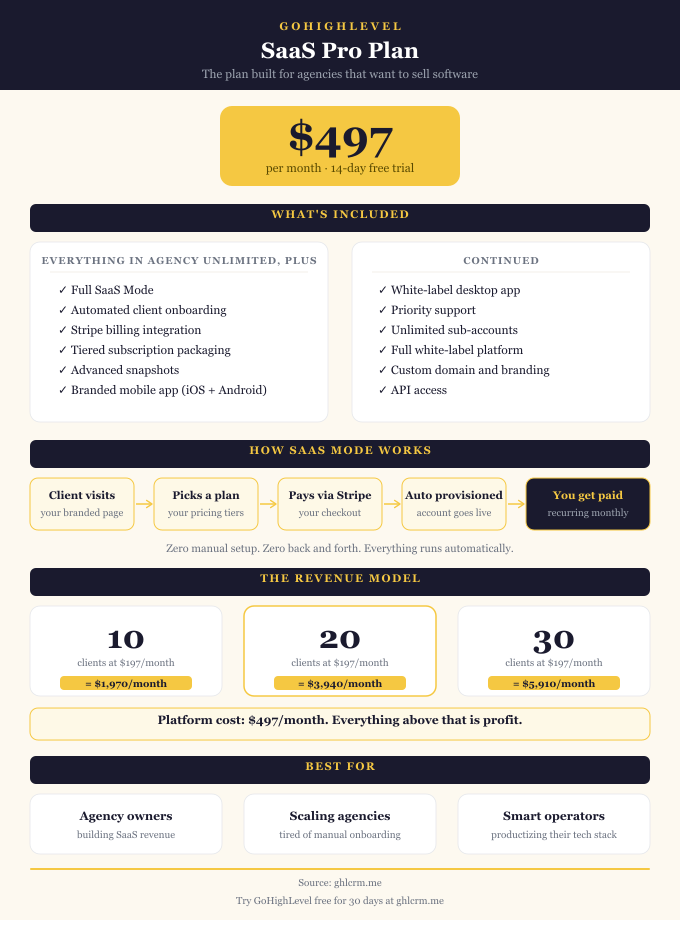
GoHighLevel Unlimited vs Pro plan comparison comes down to whether you want to resell the platform as your own software. The $200 monthly difference between these plans buys you SaaS Mode, automated client billing, white-label mobile app, and advanced rebilling & markup capabilities.

Both plans include unlimited sub-accounts and all core features, so the decision depends entirely on your business model.

The button below lets you sign up for the extended free trial of the Unlimited plan and, if you wish, upgrade to the Pro plan from your dashboard. However, you can sign up for the free trial of the SaaS Pro plan directly by clicking this link.

GoHighLevel Unlimited vs Pro Comparison

Pricing Breakdown: $297 & 497

The Unlimited plan costs $297 per month or $2,970 annually, saving you roughly $594 per year. The Agency Pro plan (also called SaaS Pro) runs $497 monthly or $4,968 annually, saving about $994 when paid yearly.

That’s a $200 monthly gap, or $2,400 annually. The question is whether the additional SaaS capabilities justify this cost for your specific situation.

SaaS Mode: The Game-Changer

This is the biggest difference between the GoHighLevel Unlimited and Pro plans. SaaS Mode is available only on the Pro plan and transforms how you operate your business.

With SaaS Mode enabled, you can create up to 20 different pricing tiers for clients. Maybe you offer a Basic plan at $97, Professional at $197, and Premium at $397 monthly. Each tier includes different features you control through the SaaS Configurator.

When clients sign up through your custom sales page, Stripe automatically processes the payment, creates their sub-account, provisions their features based on the plan they selected, and sends login credentials. Everything happens without manual intervention.

Your clients pay you directly at whatever price you set. You pay GoHighLevel the $497 base fee plus usage costs. The profit potential is significant. With just 10 clients paying $197 each, that’s $1,970 in monthly recurring revenue. Subtract your $497 platform cost, and you’re profiting over $1,400 before accounting for usage fees.

The Unlimited plan doesn’t include SaaS Mode. You can manage unlimited clients and deliver services, but you can’t package and resell the platform itself as a software subscription. Clients pay you for services, not for access to software.

Automated Client Billing

The Pro plan integrates Stripe directly for automated subscription billing. When someone subscribes to one of your pricing tiers, Stripe handles recurring charges, failed payment recovery, plan upgrades, downgrades, and cancellations automatically.

The Unlimited plan requires you to bill clients manually through your own invoicing system. You might use QuickBooks, FreshBooks, or send PayPal invoices monthly. This works fine, but adds administrative overhead and room for payment delays or missed invoices.

For agencies managing 10+ clients, automated billing saves hours each month and ensures consistent cash flow. Failed payments are retried automatically, so you don’t have to chase clients down.

White-Label Mobile App

Both plans include white-label capabilities, but they differ in scope.

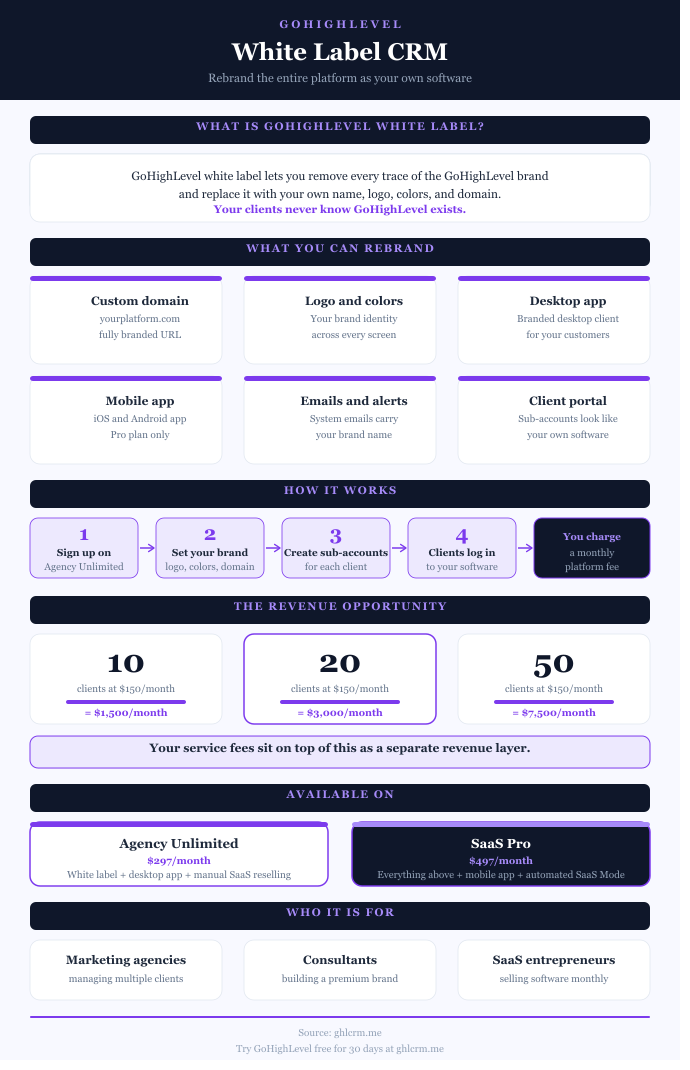
The Unlimited plan gives you the white-label desktop app. You customize it with your logo, domain, and branding so clients see your company name when they log in through their desktop or web browser.

The Pro plan adds the white-label mobile app. Your clients download a fully branded iOS and Android app from the App Store and Google Play displaying your company name, logo, and colors. They never see GoHighLevel mentioned anywhere.

The mobile app requires additional setup fees and quarterly hosting charges beyond your base subscription, but for agencies serving clients who need mobile access to manage leads, respond to conversations, and check reports on the go, this feature provides tremendous value.

If your clients primarily access the platform through desktops, the Unlimited plan’s desktop white-labeling is sufficient. But if mobile access matters to your target market, the Pro plan becomes necessary.

Advanced Rebilling and Markup Controls

Both plans allow you to bill clients for usage costs, but the Pro plan offers more sophisticated controls.

Usage-based services such as SMS, phone calls, emails, and AI features incur pay-as-you-go charges. SMS costs approximately $0.0079 per segment, outbound calls cost $0.018 per minute, inbound calls run $0.0085 per minute, and email sending costs $0.675 per 1,000 messages.

On the Unlimited plan, you can rebill these costs to clients, but you handle the markup calculations and invoicing manually. You track what each client used, calculate your markup, and bill them separately.

The Pro plan automates this entire process. You set your markup multipliers (1x to 10x) in the system, and it automatically calculates what to charge each client. The charges appear on their monthly invoice alongside their subscription fee. If a text costs you $0.008, and you set a 3x markup, the client gets charged $0.024 automatically.

This automation matters significantly when managing many clients with varying usage patterns. The system tracks everything, applies your markups, and generates accurate billing without spreadsheets or manual calculations.

API Access Differences

Both Unlimited and Pro plans include API access, but Pro provides advanced API capabilities.

The Unlimited plan offers basic API access. You can create sub-accounts programmatically, load snapshots, manage users, and integrate with external tools. This works well for standard agency operations and custom integrations.

The Pro plan expands API functionality with additional endpoints and capabilities designed for agencies operating at scale or building complex custom solutions. If you’re developing proprietary tools on top of GoHighLevel or need deeper programmatic control, Pro delivers what Unlimited can’t.

For most agencies, the Unlimited plan’s basic API access handles everything they need. Advanced API capabilities matter primarily to technical agencies building sophisticated custom systems.

Features Both the Unlimited & Agency Pro Plans Share

Before assuming Pro is automatically better, understand that both GoHighLevel Unlimited and Pro plans include identical core functionality:

  • Unlimited sub-accounts for managing as many clients or locations as you need without hitting caps.
  • Complete CRM with unlimited contacts, smart lists, tagging, custom fields, and conversation history across all channels.
  • Multi-channel communication through unified inbox handling SMS, email, Facebook Messenger, Instagram DMs, Google Business Messages, and WhatsApp.
  • LC Phone system for calls, texts, and voicemail drops directly from the platform.
  • Calendar features with unlimited calendar types, automated booking, reminders, payment collection, and Google/Outlook sync.
  • Funnel and website builder with drag-and-drop interface, templates, unlimited pages, and forms.
  • Email and SMS marketing with campaign builder, automation sequences, templates, and analytics.
  • Workflow automation using visual builder with triggers, conditional logic, and multi-step sequences.
  • Pipeline management with custom pipelines, stages, automation, and deal tracking.
  • Social media tools for scheduling posts and monitoring mentions across multiple platforms.
  • Reputation management with automated review requests and response management.
  • Membership sites with course builder, drip content, quizzes, and certificates.
  • AI features including AI Employee for voice responses, review replies, and content generation.
  • Team management with unlimited users and customizable permissions.
  • White-label desktop app with custom branding and domain.

The core platform power is identical. You’re not getting a stripped-down version on Unlimited. The difference is purely in how you monetize and scale your business.

Who Should Choose Agency Unlimited?

The Unlimited plan makes sense when:

You’re providing services, not selling software. If clients pay you for campaign management, funnel building, or marketing consulting rather than software subscriptions, Unlimited delivers everything you need.

Your clients don’t need mobile app access. Desktop and web browser access is sufficient for their needs, so paying extra for the mobile app doesn’t add value.

You’re comfortable handling billing manually. Creating invoices through your existing accounting system isn’t a burden, and you don’t mind the administrative overhead.

You haven’t validated your SaaS offering yet. You’re still figuring out your positioning, pricing, and whether clients will actually pay for software subscriptions rather than just services.

Budget matters significantly. Saving $200 monthly ($2,400 annually) is meaningful to your current financial situation, and you’d rather reinvest that money into marketing or team growth.

You’re managing fewer than 10 clients. At this scale, manual billing and basic rebilling don’t create significant administrative burden.

Many successful agencies run profitably on the Unlimited plan for years. Don’t overpay for SaaS features you won’t use.

Who Should Choose Agency Pro?

The Agency Pro plan becomes necessary when:

You want to sell software subscriptions and position yourself as a SaaS company rather than just a services agency.

Automated billing matters because you’re managing many clients and don’t want to spend hours creating invoices and chasing payments.

Your clients demand mobile access to manage their business on the go, and a fully branded mobile app strengthens your value proposition.

You want to maximize rebilling profits through automated markup controls that calculate and charge usage fees without manual intervention.

You’re ready to scale quickly with automated onboarding that creates client accounts without manual setup work.

Your positioning requires it. You’re selling “your proprietary platform” to clients, and having every touchpoint fully branded (including mobile) makes that claim believable.

The Pro plan transforms your business model from service provider to software company. For agencies ready to make that shift, the additional $200 monthly pays for itself quickly through recurring subscription revenue and automated rebilling profits.

Usage Costs Apply Regardless

Both plans charge usage fees beyond the base subscription. This affects your total cost of operation.

SMS, phone calls, emails, A2P 10DLC registration, WordPress hosting, and AI features generate pay-as-you-go charges based on actual usage. These costs scale with how actively you and your clients use communication features.

The difference is that Pro plan users can automate rebilling with markups to turn usage costs into profit centers, while Unlimited users must handle rebilling manually or absorb costs themselves.

Budget for usage costs when calculating your total platform investment. Agencies sending thousands of texts and making hundreds of calls monthly should factor these expenses into their pricing strategy.

Making the Switch Later

You can upgrade from Unlimited to Pro at any time in your account settings. The transition is seamless, with all sub-accounts, contacts, funnels, workflows, and data migrating automatically.

The upgrade takes effect immediately, and you pay the proportional adjustment for the remainder of your billing cycle. If you’re halfway through the month on Unlimited and upgrade to Pro, you’ll pay roughly $100 to cover the difference until your next renewal.

Downgrading from Pro to Unlimited also works, though it typically takes effect at your next billing cycle. You keep Pro features until renewal, then SaaS Mode and the mobile app become unavailable.

This flexibility means you can start with Unlimited to learn the platform and validate your business model, then upgrade to Pro when you’re ready to launch your software offering. Don’t overpay before you’ve proven the concept.

The Trial Period Strategy

Both plans offer 14-day free trials through GoHighLevel’s main website; my affiliate link provides an extended 30-day trial.

My recommendation: try the Pro plan even if you think Unlimited might be enough. This lets you explore SaaS Mode, test automated billing, and understand the mobile app experience. You can always downgrade to Unlimited after your trial if Pro feels premature.

Use the trial period to build out your pricing tiers, set up a test sales funnel, configure rebilling markups, and see how automated onboarding works. This hands-on experience clarifies whether the Pro features justify the extra cost for your specific situation.

GoHighLevel Unlimited vs Pro: Final Verdict

The GoHighLevel Unlimited vs Pro plan comparison isn’t about one plan being objectively better. It’s about matching your current business model and growth plans to the right features.

If you’re delivering services and managing client marketing operations, Unlimited at $297 monthly provides everything you need. The unlimited sub-accounts, white-label desktop app, and basic rebilling support successful agency operations without paying for unnecessary SaaS features.

If you’re ready to sell software subscriptions, automate client billing, offer branded mobile access, and maximize rebilling profits, Pro at $497 monthly becomes essential. The SaaS Mode capabilities transform your business model and create recurring revenue streams that service-only agencies can’t match.

GoHighLevel Pricing: Complete Cost & Value Breakdown 2026

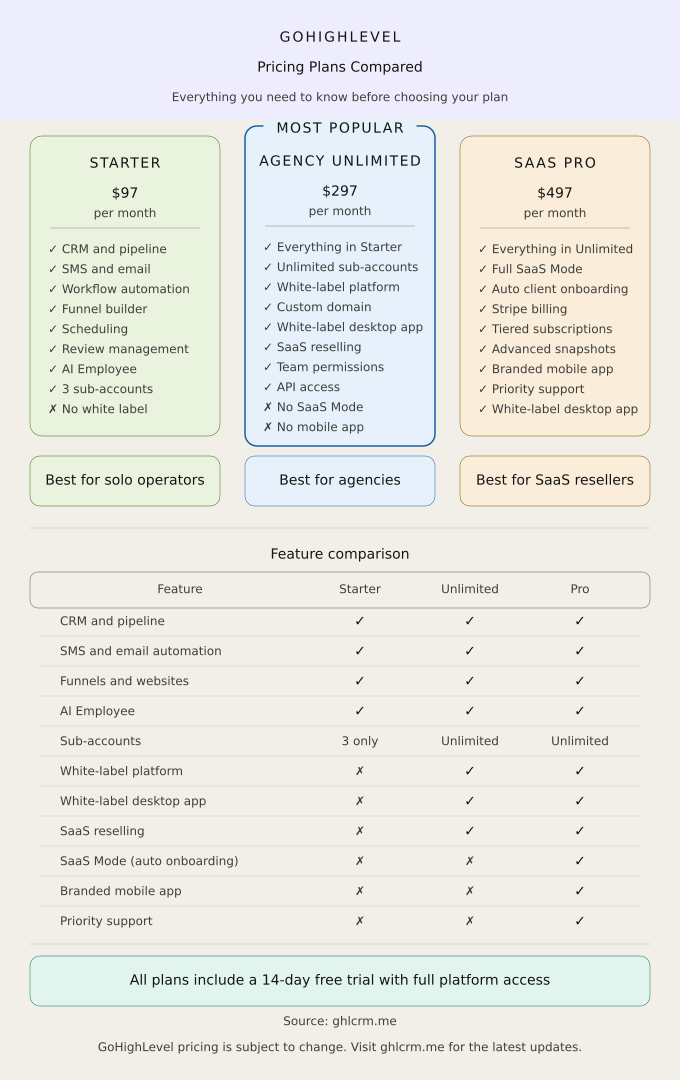
GoHighLevel pricing starts at $97/month for the Starter plan, scales to $297/month for the Unlimited plan with white-label capabilities, and reaches $497/month for the SaaS Pro plan that lets you resell the platform as your own software.

Whether you’re a solo business owner, a growing agency, or building a SaaS company, this guide will help you choose the plan that offers the best value for your business and eliminate bill shock.

GoHighLevel Pricing Plans

Starter Plan: $97/Month ($970/Year)

The Starter plan costs $97 per month or $970 annually (saving approximately $194 with annual billing, essentially 2 months free). This GHL pricing plan is for solo operators, small businesses & new agencies.

Despite being the entry-level option, it includes the platform’s core features, but agencies are limited to 3 sub-accounts (1 account for your agency + 2 client accounts).

What’s Included:

  • Complete CRM with pipeline management and deal tracking
  • Unlimited contacts and unlimited users
  • Website builder with SEO optimization
  • Funnel builder with drag-and-drop editor
  • Email marketing with unlimited sends
  • SMS marketing capabilities
  • Appointment scheduling with automated reminders
  • LC Phone system with call recording and tracking
  • Social media scheduling and management
  • Workflow automation with advanced triggers
  • Forms, surveys, and lead capture tools
  • Tools that help manage your business online reputation
  • 3 sub-accounts for managing clients or locations

Who It’s For:

  • Freelance marketers managing 1-2 clients
  • Small businesses running their own marketing
  • Consultants testing the platform before scaling
  • Service professionals who need an all-in-one solution

Limitations:

  • Only 3 sub-accounts (sufficient for small operations)
  • No white-label desktop app
  • No API access
  • Cannot resell the platform to clients

The Starter plan is the most affordable HighLevel CRM pricing tier. It offers exceptional value at $97/month and replaces tools that would typically cost $300-500/month separately.

Unlimited Plan: $297/Month ($2,970/Year)

At $297 per month or $2,970 annually (saving approximately $594 with annual billing), the GoHighLevel Unlimited plan provides agencies with unlimited sub-accounts, white-label desktop branding, and API access.

This GoHighLevel pricing plan unlocks the platform’s true agency potential, removing the sub-account ceiling entirely.

Everything in Starter, Plus:

  • Unlimited sub-accounts for unlimited clients
  • White-label desktop app with custom branding
  • Full API access for custom integrations
  • Advanced workflow capabilities
  • Priority support and feature access
  • Custom domains for client portals
  • Complete control over look and feel

Who It’s For:

  • Marketing agencies managing 2+ clients
  • Digital agencies offering CRM as a service
  • Consultants with growing client rosters
  • Anyone planning to white-label the platform

SaaS Pro Plan: $497/Month ($4,970/Year)

At $497 per month or $4,970 annually (saving approximately $994 with annual billing), the SaaS Pricing plan enables agencies to resell Go High Level as their own software, including SaaS Mode with custom pricing for client accounts, a white-label mobile app, and automated billing for subscriptions and usage.

Everything in Unlimited, Plus:

  • SaaS Mode with custom pricing tiers
  • White-label mobile app for iOS and Android
  • Automated client billing through Stripe
  • Custom feature packaging per client
  • Advanced rebilling controls
  • Sub-account provisioning automation
  • Client usage tracking and reporting

Who HighLevel SaaS Pricing is For:

  • Agencies building true SaaS businesses
  • Entrepreneurs creating niche software products
  • Consultants who want to provide automated done-for-you services
  • Anyone serious about recurring revenue models

GoHighLevel Pricing Comparison Table

FeatureStarter ($97/mo)Unlimited ($297/mo)SaaS Pro ($497/mo)
Core CRM✅ Full access✅ Full access✅ Full access
ContactsUnlimitedUnlimitedUnlimited
UsersUnlimitedUnlimitedUnlimited
Sub-Accounts3UnlimitedUnlimited
Email Marketing✅ Unlimited sends✅ Unlimited sends✅ Unlimited sends
SMS Marketing✅ Included✅ Included✅ Included
Funnel Builder✅ Unlimited funnels✅ Unlimited funnels✅ Unlimited funnels
Website Builder✅ Included✅ Included✅ Included
Landing Pages✅ Unlimited✅ Unlimited✅ Unlimited
Appointment Scheduling✅ Included✅ Included✅ Included
LC Phone System✅ Included✅ Included✅ Included
Call Recording✅ Included✅ Included✅ Included
Voicemail Drops✅ Included✅ Included✅ Included
Pipeline Management✅ Unlimited pipelines✅ Unlimited pipelines✅ Unlimited pipelines
Workflow Automation✅ Included✅ Advanced✅ Advanced
Forms & Surveys✅ Included✅ Included✅ Included
Social Media Planner✅ Included✅ Included✅ Included
Reputation Management✅ Included✅ Included✅ Included
Course Builder✅ Included✅ Included✅ Included
Membership Sites✅ Included✅ Included✅ Included
Reporting & Analytics✅ Standard✅ Standard✅ Advanced
White-Label Desktop App✅ Full branding✅ Full branding
White-Label Mobile App✅ iOS & Android
API Access❌ Basic only✅ Full access✅ Full access
SaaS Mode✅ Custom pricing
Client RebillingLimited✅ Automated
Custom Feature Packaging✅ Per client
Priority Support✅ Included✅ Enhanced
Free Trial14 days14 days14 days
Annual Billing Option✅ Save ~16% (2 months free)✅ Save ~16% (2 months free)✅ Save ~16% (2 months free)
Best ForFreelancers, solo businesses, 1-3 clientsGrowing agencies, 4+ clients, white-label needsSaaS businesses, 15+ clients, productized offerings

GoHighLevel Annual Pricing

GoHighLevel’s yearly pricing offers approximately 16% savings, essentially 2 months free compared to paying monthly. This discount applies to all three plans:

  • Starter Annual: It costs $970/year (save $194 vs. monthly)
  • Unlimited Annual: $2,970/year (save $594 vs. monthly)
  • SaaS Pro Annual: $4,970/year (save $994 vs. monthly)

For agencies confident in their commitment to the platform, annual billing offers significant savings and locks in predictable costs for the entire year. The savings increase proportionally with higher-tier plans. SaaS Pro users save nearly $1,000 annually.

GoHighLevel Hidden Fees: Additional Usage Costs

Go High Level’s subscription covers platform access; the hidden fees are basically additional charges for communication services billed on a usage-based basis through the Agency Wallet system. These fees are not hidden in the real sense, they are only reffered to as such because they are not as well known as the standard costs.

Unlike other companies that charge based on a fixed number of SMS or emails per month, GoHighLevel only charges for what you actually use through a wallet system.

Communication Costs

SMS Pricing: SMS costs approximately $0.0079 per segment. A “segment” represents 160 characters for standard messages or 70 characters for messages with special characters or emojis.

  • Short message (under 160 characters): $0.0079
  • Long message (2 segments): $0.0158
  • Marketing blast to 1,000 contacts: $7.90-15.80

Voice Call Pricing: Inbound calls cost $0.0085 per minute while outbound calls cost $0.014 per minute.

  • 30-minute consultation (inbound): $0.26
  • 15-minute sales call (outbound): $0.21
  • 100 hours monthly calling: $51-84

Phone Numbers: A local phone number costs $1.15 per month. This includes SMS and voice capabilities.

Email Sending: Email sending costs approximately $0.675 per 1,000 emails.

  • 10,000 marketing emails: $6.75
  • 50,000 nurture emails: $33.75
  • Email verification: $2.50 per 1,000

AI Employee Pricing: The Sixth Team Member

AI Employee pricing offers two options: unlimited usage of core AI Employee features for $97/month, or consumption-based pricing with pay-per-use rates.

AI Employee Components

Voice AI: $0.13 per minute for pay-per-use, or included in unlimited plan

  • Answers missed calls 24/7
  • Qualifies leads automatically
  • Schedules appointments
  • Updates CRM in real-time

Conversation AI: $0.02 per message for pay-per-use

  • Handles SMS, Facebook Messenger, Instagram DMs
  • Provides instant responses across all channels
  • Maintains brand voice consistency

Reviews AI: $0.08 per review for pay-per-use

  • Monitors Google and Facebook reviews
  • Generates sentiment-appropriate responses
  • Automates review request campaigns

Content AI: $0.09 per 1,000 words and $0.06 per image for pay-per-use

  • Generates blog posts and marketing copy
  • Creates social media content
  • It creates custom-branded images

Funnel AI: $0.99 per funnel for pay-per-use

  • Builds complete funnels from descriptions
  • Imports designs from URLs or screenshots
  • Generates SEO-optimized copy

Workflow AI Assistant: $0.02 per request for pay-per-use

  • Suggests workflow automation
  • Troubleshoots existing workflows
  • Generates custom automation sequences

Which AI Pricing Model Makes Sense?

Pay-Per-Use Best For:

  • Testing AI features before committing
  • Low-volume usage (under 50 interactions monthly)
  • Specific use cases (Reviews AI only, for example)

Unlimited ($97/month) Best For:

  • High call volume businesses (20+ daily calls)
  • Active social media engagement (100+ messages monthly)
  • Regular content creation needs
  • Agencies reselling AI to clients

Agency Reselling Strategy:

Enable AI Employee for clients at $97-197/month per sub-account. Your costs:

  • Go High Level AI: $97/month per client
  • Your rebilling price: $197/month per client
  • Profit per client: $100/month
  • 10 clients = $1,000/month AI profit

Common agency rebilling markup ranges from $97 to $197 per month per sub-account, positioning AI as an “AI staff member” rather than mere software.

Which GHL Pricing is Right for You?

Choose Starter ($97/month) If:

  • You’re a solo entrepreneur or freelancer
  • You manage 1-2 clients maximum
  • You don’t need white-label capabilities yet
  • You want to test platform capabilities
  • Budget is the primary constraint
  • You’re replacing multiple tools for personal use

Choose Unlimited ($297/month) If:

  • You’re a growing agency with 3+ clients
  • You want unlimited client sub-accounts
  • White-label branding matters for your positioning
  • You plan to resell CRM access to clients
  • You need API access for custom integrations
  • You’re building an agency business model

Choose SaaS Pro ($497/month) If:

  • You manage 15+ clients actively
  • You’re building a true SaaS business
  • You want automated client billing
  • Mobile app branding is important
  • You’re creating niche industry solutions
  • Recurring revenue is your primary business model

Go High Level Pricing: Is it Worth the Cost?

Go High Level pricing offers exceptional value for agencies and service businesses, yielding a 10-20x return on investment when accounting for tool consolidation savings and reselling revenue.

The flat-rate pricing model eliminates growth anxiety. You won’t face bill shock as your contact database expands or client roster grows. The predictability enables confident scaling.

The white-label and reselling capabilities transform software from an expense to a profit center. This business model shift from paying for tools to selling tools fundamentally changes agency economics.

Frequently Asked Questions on GoHighLevel Pricing

How much does GoHighLevel cost per month?

GoHighLevel offers three main pricing tiers: $97 per month for the Starter plan, $297 monthly for the Unlimited plan, and $497 per month for the Agency Pro (SaaS Pro) plan.

The Starter plan works well for solo entrepreneurs or single-location businesses managing up to three sub-accounts. The Unlimited plan gives you unlimited sub-accounts, API access, and white-label desktop branding, making it perfect for agencies handling multiple clients. The Agency Pro plan includes everything from Unlimited plus SaaS Mode, which lets you rebrand and resell the platform as your own software with custom pricing.

Is GoHighLevel pricing worth it for small businesses?

GoHighLevel pricing is absolutely worth it for small businesses, especially at the $97 monthly Starter plan level. If you’re using the platform to run your own business rather than managing multiple clients, this entry-level plan gives you everything you need: a complete CRM, marketing automation, funnel builder, website builder, calendar system, and more bundled together.

Is there a free trial for GoHighLevel?

Yes, GoHighLevel offers a 14-day free trial as their standard option when you sign up directly through their main website. However, my affiliate link provides extended 30-day trials, giving you twice as much time to test the platform.

Can I save money by paying annually?

Absolutely. When you choose GHL annual billing instead of monthly, you typically get about two months free, which works out to roughly a 16% discount. For the Starter plan, that’s around $194 in savings per year. For the Unlimited plan, you save approximately $594 annually. The Agency Pro plan saves you about $994 when paid yearly.

What’s the difference between the Starter and Unlimited plans?

The biggest difference is the number of sub-accounts you can create. The Starter plan limits you to three sub-accounts, while Unlimited removes that cap entirely so you can manage as many clients as you want.

The Unlimited plan also includes API access for custom integrations with other software, which the Starter plan lacks. You get the white-label desktop app with Unlimited, letting you rebrand the platform with your own domain and logo so clients never see the GoHighLevel name.

Can I upgrade or downgrade my GHL Pricing plan later?

Yes, GoHighLevel makes plan changes easy. If you start with the Starter plan and realize you need more sub-accounts or API access, you can upgrade to Unlimited at any time from your account settings. The upgrade usually takes effect immediately, and you only pay the proportional adjustment for the remainder of your billing cycle.

Downgrading works too, though it typically doesn’t take effect until your current billing period ends. If you downgrade from Unlimited to Starter mid-month, you’ll keep Unlimited features until your renewal date, then the Starter restrictions apply.

All your data, sub-accounts, contacts, funnels, and workflows migrate seamlessly when you change plans. You don’t lose anything you’ve built.

Can I cancel my GHL subscription at anytime?

GoHighLevel operates on a month-to-month basis with no long-term contracts required. You can cancel your subscription at any time in your billing settings without penalties or cancellation fees.

However, there are no refunds for partial months. If you cancel on the 15th of the month after already being charged, you won’t get money back for the unused half month. Your access continues until the end of your billing period, after which your account is deactivated.

How does GoHighLevel pricing compare to using multiple separate tools?

This is where GoHighLevel’s value becomes obvious. Most agencies run a tech stack that includes separate subscriptions for CRM (like HubSpot at $50-$800+ monthly), funnel builder (ClickFunnels at $147-$297), email marketing (Mailchimp or ActiveCampaign at $30-$150+), SMS platform (Twilio setup plus usage), calendar tool (Calendly at $10-$16 per user), and social media scheduler (Buffer or Hootsuite at $15-$100).

Adding those up, you’re easily spending $300-$1,500+ monthly just on software before even counting usage fees. GoHighLevel consolidates all of that into one platform at $97, $297, or $497 depending on your needs.

How Much Does GoHighLevel’s HIPAA compliance cost?

If your business handles protected health information (PHI) and needs to comply with HIPAA regulations, GoHighLevel offers a HIPAA-compliant version. This add-on costs $297 per month or $2,970 annually, in addition to your regular subscription fee.

Once you enable HIPAA compliance, you cannot remove it from your account. This is a permanent upgrade due to the legal and technical requirements for handling protected health data.

GoHighLevel for Property Management: Complete 2026 Guide

GoHighLevel helps property managers organize tenant communication, maintenance tracking, lease management, and lead nurturing into one platform.

If you’re managing rental properties, whether it’s a handful of single-family homes or a 200-unit apartment complex, you know the communication never stops.

Tenants text at midnight about broken AC units. Prospects call during showings to ask whether pets are allowed. Lease renewals need to be coordinated months in advance. Without proper systems, it becomes complete chaos.

Here’s how using GoHighLevel for property management transforms operations while actually cutting costs compared to other platforms.

Why Property Managers Need GoHighLevel for Better Systems

Property management involves constant communication. Prospective tenants inquire about units, current tenants submit maintenance requests, lease renewals need coordination, rent reminders require sending, and property showings demand scheduling.

Most property managers piece together solutions using separate tools for each function.

Email for general communication, text messages on personal phones, spreadsheets for maintenance tracking, Google Calendar for showings, and a basic CRM for leads.

Nothing communicates with each other, information gets lost, and you’re constantly switching between platforms.

GoHighLevel brings everything into one centralized system designed for businesses that need systematic communication and process automation.

Lead Capture and Prospective Tenant Management

Empty units cost you money every day they sit vacant. Fast response to inquiries and systematic follow-up dramatically reduces vacancy periods.

Automated Inquiry Response

When someone fills out a contact form on your property website or calls your listing number, GoHighLevel captures their information instantly. Within seconds, they receive an automated text: “Thanks for your interest in [Property Name]! We’d love to show you the unit. When works best for you?”

This immediate response beats competitors who might not get back to prospects until tomorrow. Speed matters tremendously in rental markets where qualified tenants are evaluating multiple properties simultaneously.

Lead Nurturing Sequences

Not every prospect is ready to commit immediately. Build automated drip campaigns that keep your property top-of-mind without manual effort.

Send property details and photos via email immediately after initial contact. Follow up three days later with neighborhood information and amenities. A week later, share tenant testimonials and community features. Two weeks out, offer a limited-time move-in special.

These sequences run automatically, nurturing leads until they’re ready to schedule a showing or submit an application.

Pipeline Tracking

Create custom pipelines that track where each prospective tenant is in your rental process: New Inquiry → Information Sent → Showing Scheduled → Application Received → Background Check → Approved → Lease Signed.

Visualize all prospects at once and see exactly who needs follow-up. Nobody falls through the cracks because they’re stuck in “Information Sent” for two weeks without advancing.

Automated Showing Scheduling

Coordinating property viewings traditionally requires back-and-forth texting or calling to find mutually available times. GoHighLevel’s calendar system eliminates this.

Set your availability for showings once. Prospective tenants receive a booking link, see your open time slots, and schedule themselves directly. Confirmation messages go out automatically via text and email with the property address, showing time, and contact information.

Automated reminders are sent 24 hours before and 1 hour before the showing, dramatically reducing no-shows. When someone cancels, the time slot immediately reopens for other prospects to book.

Tenant Communication Management

The Conversations inbox consolidates all tenant communication into one unified feed.

Text messages, emails, Facebook messages, and phone calls all appear in the same thread attached to each tenant’s contact record. When a tenant texts about a maintenance issue, emails about a lease renewal, and then calls with a follow-up question, you see the entire conversation history in one place.

For property management companies with multiple team members, everyone can access the same information in real time. Your maintenance coordinator sees the text conversation your leasing agent had with the tenant yesterday. No more “let me check my email to see what you sent” situations.

The mobile app keeps you connected while away from the office. Respond to tenant inquiries, coordinate maintenance, and manage communications from your phone with full access to conversation history and contact details.

Maintenance Request Automation

Maintenance requests need systematic tracking to prevent things from being forgotten and ensure tenant satisfaction.

Request Submission

Create a simple form where tenants submit maintenance requests. Include fields for issue type, urgency level, preferred contact method, and detailed description with photo uploads.

When submitted, the request automatically creates a task assigned to your maintenance team. The tenant receives instant confirmation: “We received your maintenance request for [issue]. Our team will contact you within 24 hours to schedule service.”

Status Updates

Build workflows that keep tenants informed throughout the repair process. When maintenance is scheduled, an automated text sends the appointment details. When the technician is on their way, another notification goes out. After completion, a final message confirms the work is done and requests feedback.

This systematic communication prevents the constant “what’s the status?” calls and texts while keeping tenants satisfied with your responsiveness.

Follow-Up Surveys

After completing maintenance, automatically send a brief satisfaction survey. This follow-up survey helps you monitor service quality, identify recurring issues, and catch problems before they escalate into complaints.

Lease Renewal Management

Lease renewals require months of coordination to prevent vacancies when tenants leave without notice.

Set up automated workflows that trigger 90 days before lease expiration. The tenant receives a friendly reminder that their lease ends soon, along with renewal options and any rate adjustments.

If they don’t respond within two weeks, another follow-up goes out. Four weeks before expiration, the message becomes more urgent. Six weeks before expiration, if still no response, the system notifies your leasing team to call personally.

This systematic approach prevents the situation where you discover a tenant is leaving only 30 days out, leaving insufficient time to market the unit and find a replacement.

For tenants who renew, automated workflows guide them through the renewal process, send updated lease documents, collect signatures electronically, and process any deposit or fee adjustments.

Rent Collection and Payment Reminders

Late rent payments create cash flow problems and administrative headaches. Automated reminders dramatically improve on-time payment rates.

Five days before rent is due, tenants receive a friendly reminder via text and email with payment instructions and portal links. On the due date, another reminder goes out. Three days after the due date, overdue tenants get a more urgent message.

Integration with Stripe enables online rent collection. Tenants pay through secure payment links sent via text or email, eliminating checks, money orders, and in-person payments. Automatic receipts are generated immediately after successful payments.

For tenants who consistently pay late, you can tag them and adjust their reminder schedule to start earlier or send more frequent nudges.

Review and Reputation Management

Online reviews influence prospective tenants’ decisions about where to live. Properties with numerous positive reviews fill vacancies faster and command higher rents.

After a tenant moves in and settles for 30-60 days, automatically send a review request. “How’s your experience at [Property Name] so far? We’d love to hear your feedback!” Include a direct link to your Google Business Profile or apartment review sites.

The system can filter based on satisfaction. First, ask tenants to rate their experience privately. Happy tenants (4-5 stars) get directed to leave public reviews. Unhappy tenants (1-3 stars) provide feedback privately so you can address issues before they become public complaints.

Consistent review requests systematically build your property’s online reputation, rather than relying on occasional satisfied tenants to leave reviews voluntarily.

Marketing Automation for Vacancies

When units become available, you need to fill them quickly. GoHighLevel automates your vacancy marketing.

Multi-Channel Campaigns

Create campaigns that promote available units across email, SMS, and social media simultaneously. Past prospects who didn’t rent previously receive notifications about new availability.

Your email list gets property details and virtual tour links. Social media posts go out automatically with photos and booking links.

Landing Pages for Properties

Build dedicated landing pages for each property or unit type. Include photo galleries, amenities lists, neighborhood information, floor plans, and pricing. Embed lead capture forms that feed prospects directly into your CRM with automated follow-up sequences.

These pages can be used in paid advertising campaigns on Facebook, Google, and apartment listing sites, ensuring that all traffic is captured and systematically nurtured.

Retargeting Sequences

Prospects who viewed your property page but didn’t book a showing are added to retargeting workflows. Follow up with additional property details, special offers, or flexible lease terms to encourage them to schedule a visit.

Reporting and Analytics

Understanding your property management metrics helps you optimize operations and prove value to property owners.

GoHighLevel’s dashboard tracks key performance indicators, including lead response time, showing-to-application conversion rates, maintenance request resolution time, lease renewal rates, and rent collection percentages.

Custom reports can be scheduled to send automatically to property owners weekly or monthly, demonstrating your proactive management and strong results.

Integration with Property Management Software

GoHighLevel doesn’t replace specialized property management software for accounting, rent roll management, or detailed financial reporting. Instead, it complements these systems by handling marketing, communication, and tenant relationship management.

Using Zapier or an API integration, you can connect GoHighLevel to property management platforms such as Buildium, AppFolio, or Rent Manager.

When a lease is signed in your property management system, the tenant is automatically added to GoHighLevel for communication management.

When maintenance requests come through GoHighLevel, they sync to your property management software for tracking.

This integration creates a comprehensive ecosystem where each platform handles what it does best.

Setting Up GoHighLevel for Property Management Success

You can either use a ready-made GoHighLevel snapshot for property management or follow this process:

Core Configuration

Connect your phone number for SMS, set up your email domain, and import existing tenant and prospect contacts. Create your basic pipeline stages and calendar for property showings.

Build Automation

Create your top three workflows: new-inquiry follow-up, showing reminders, and maintenance-request handling. Test each thoroughly with dummy contacts before activating for real tenants.

Marketing Assets

Build landing pages for your properties, create email and SMS templates for common communications, and set up your review request workflow.

Team Training

Train your leasing agents, maintenance coordinators, and property managers on using the platform. Show them how to access conversations, manage tasks, and update contact information.

The Investment Analysis

Property management margins are tight. Every efficiency gain directly improves profitability.

At $97 monthly for the Starter plan (suitable for smaller portfolios) or $297 for Unlimited (for larger operations), GoHighLevel costs less than most property managers waste monthly on vacancy periods caused by slow response times.

If faster lead response and systematic follow-up reduce your average vacancy by even 7 days, the revenue recaptured from that extra week of rent likely pays for the platform multiple times over.

GoHighLevel for Property Management: Final Words

The trial period provides enough time to test GoHighLevel for property management with actual workflows. Import a dozen tenants and prospects, build one automation workflow, create a property landing page, and use the system for real communication.

Don’t just click around exploring features. Actually manage properties through it to determine if it fits operations.

Most property managers who commit to learning the platform report it as one of their best operational investments because time savings and improved tenant satisfaction justify costs within the first month.

For property management professionals ready to modernize operations, consolidate communication, and automate repetitive tasks, GoHighLevel for property managers offers compelling solutions worth serious evaluation.

GoHighLevel for Agencies: Step-by-Step Deployment Guide

GoHighLevel provides everything marketing agencies need to manage multiple clients from one platform. Instead of managing separate tools for CRM, email marketing, funnels, and scheduling, you combine everything into a single system designed specifically for agency operations.

This guide shows you exactly how to deploy GoHighLevel in your agency, from initial setup through client onboarding and team training.

How to Start an Agency With GoHighLevel

Step 1: Choose Your Plan and Set Up Your Agency Account

Start by creating a GoHighLevel account and selecting the right plan for your agency size.

The Unlimited plan at $297/month works for most agencies since it includes unlimited sub-accounts. If you’re planning to resell GoHighLevel as your own software, choose Agency Pro at $497/month for SaaS Mode capabilities.

You can sign up using my affiliate link for an extended 30-day trial instead of the standard 14-day trial.

After creating your account, you’ll land in the Agency View. This is your master control panel where you manage all client sub-accounts, team members, and agency-wide settings.

Complete Your Agency Profile

Go to Settings > Company Settings and fill in your agency information, including business name, address, phone number, and website. Upload your agency logo that will appear throughout the platform.

If you’re on Unlimited or Agency Pro, configure your white-label settings here. Add your custom domain (like app.youragency.com), so clients access the platform through your branded URL instead of GoHighLevel’s domain.

Step 2: Connect Essential Integrations

Before creating client accounts, connect the core integrations you’ll use across your agency.

Payment Processor

Navigate to Settings > Integrations and connect Stripe (most recommended) or your preferred payment gateway. This enables payment collection across all client accounts. Each client can later connect their own Stripe account, or you can use your agency account to process payments on their behalf.

Calendar Systems

Connect Google Calendar and/or Outlook under Settings > Integrations. This allows appointment scheduling to sync with your team’s calendars, preventing double-bookings.

Social Media Platforms

Connect Facebook, Instagram, LinkedIn, and other social platforms you’ll use for client campaigns. These connections enable the Social Planner, ad management, and social messaging features.

Step 3: Set Up Your Team Structure

Add team members who’ll be working in client accounts.

Go to Settings > My Staff and click Add Employee. Enter their name, email, and contact information. Set their user type to “Agency” for full agency-level access or “Account” for sub-account specific access.

Configure Permissions

For each team member, toggle permissions for different platform areas. Your account managers might need full access, while your content creators only need Social Planner access. Your sales team might see pipelines but not billing settings.

This granular control ensures team members access exactly what they need without exposing sensitive client information unnecessarily.

Step 4: Create Your First Sub-Account

Sub-accounts are isolated workspaces for each client. Let’s create one to understand the process.

From Agency View, click “Sub-Accounts” in the left menu, then click “Add Sub-Account” in the top right.

You’ll see two options: load from a Snapshot (template) or start blank. For your first account, choose blank so you understand the complete setup process. Later, you’ll use Snapshots to speed up onboarding.

Enter the client’s business information, including name, address, phone number, website, and timezone. This information populates throughout their account.

Click “Create Sub-Account.” Within seconds, the new client workspace appears in your sub-accounts list.

Step 5: Configure the Client Sub-Account

Click into the newly created sub-account. You’re now operating inside that client’s workspace.

Set Up Business Settings

Go to Settings > Business Profile and verify all information is correct. Add the client’s logo, business hours, and any additional details specific to their operation.

Connect Client-Specific Integrations

If the client has their own Stripe account, connect it under Settings > Integrations. Same for their Google Calendar, Facebook Business Page, or other platform-specific accounts.

This keeps their payment processing and social media management under their control rather than running through your agency accounts.

Create Custom Fields

Navigate to Settings > Custom Fields. Create fields relevant to this client’s business. For real estate, you might add fields like “Property Interest,” “Budget Range,” and “Preferred Location.” For dental practices, fields like “Insurance Provider” and “Last Visit Date” make sense.

These custom fields let you segment contacts and personalize communications based on client-specific data points.

Step 6: Build Your First Pipeline

Pipelines track where prospects are in the sales process.

Go to Opportunities > Pipelines and click Create Pipeline. Name it based on the client’s sales process (like “Real Estate Buyer Pipeline” or “New Patient Pipeline”).

Add stages that reflect how this client actually moves prospects through their funnel. Common stages include New Lead, Contacted, Qualified, Proposal Sent, Negotiation, Closed Won, and Closed Lost.

For each stage, set the expected value and probability percentage. This helps forecast revenue based on pipeline health.

Click into each stage and configure stage-specific automations. For example, when an opportunity enters “Proposal Sent,” automatically create a task to follow up in 48 hours.

Step 7: Create Lead Capture Forms

Forms are how you capture contact information and feed leads into the CRM.

Navigate to Sites > Forms and click Create Form. Use the drag-and-drop builder to add fields you need (name, email, phone, custom fields).

Configure form settings including where submissions go (which pipeline stage), what tags to apply, and which workflow to trigger upon submission.

Publish the form and grab the embed code. You can add this to the client’s website, or use the standalone form link for paid advertising campaigns.

Test the form by submitting a test entry and verifying the contact appears correctly in the CRM with proper tags and pipeline placement.

Step 8: Build Your First Funnel

Funnels are complete marketing campaigns with landing pages, forms, and follow-up sequences.

Go to Sites > Funnels and click Create Funnel. Choose a template from the library or start from scratch.

The funnel builder lets you create multiple pages (landing page, thank you page, application page, etc.) that are linked together in a conversion flow.

Use the drag-and-drop page builder to customize design, add your client’s branding, modify copy, and configure form submissions to feed into the appropriate pipeline.

Connect the funnel to a custom domain (client’s existing website or a new domain purchased for campaigns).

Test the entire funnel flow from landing page through form submission to thank you page, verifying contacts are captured correctly.

Step 9: Create Email and SMS Templates

Build reusable templates for client communications.

Email Templates

Navigate to Marketing > Templates and click Create Email Template. Design emails for common scenarios like welcome messages, appointment confirmations, follow-ups, and promotional campaigns.

Use merge tags to personalize emails with contact names, appointment times, custom field data, and other dynamic information.

SMS Templates

Go to Marketing > Templates and create SMS templates. Keep messages concise (ideally under 160 characters to avoid multi-segment charges).

Common SMS templates include appointment reminders, quick follow-ups, review requests, and confirmation messages.

Save these templates for reuse across workflows and manual sending.

Step 10: Build Automation Workflows

Workflows automate repetitive marketing and communication tasks.

Go to Automation > Workflows and click Create Workflow. Give it a descriptive name like “New Lead Follow-Up” or “Appointment Reminder Sequence.”

Set the Trigger

Choose what starts this workflow. Common triggers include form submission, tag added, opportunity stage change, appointment booked, or specific date/time.

Add Actions

After the trigger, add actions that execute automatically. Actions include sending emails, sending SMS messages, adding/removing tags, creating tasks, updating pipeline stages, and waiting specified time periods between actions.

Example New Lead Workflow:

  1. Trigger: Form submitted
  2. Action: Send welcome SMS immediately
  3. Action: Wait 2 minutes
  4. Action: Send welcome email
  5. Action: Wait 1 day
  6. Action: Send follow-up SMS asking if they have questions
  7. Action: Create task for sales team to call if no response in 2 days

Build workflows for common scenarios including new lead follow-up, appointment reminders, post-service review requests, and cold lead re-engagement.

Test each workflow thoroughly before activating for real contacts.

Step 11: Set Up the Calendar System

Calendars handle appointment scheduling and booking.

Navigate to Calendars and click Create Calendar. Name it based on its purpose (like “Discovery Calls” or “Service Appointments”).

Configure Availability

Set the days and times when appointments can be booked. Add buffer times between appointments if the client needs travel time or prep time.

Enable team scheduling if multiple people handle appointments, choosing between round-robin (distribute evenly) or collective (all team members must be available).

Set Up Notifications

Configure automated reminders sent via SMS and email. Standard setup includes 24-hour reminder, 1-hour reminder, and immediate confirmation.

Connect Payment Collection

Enable payment collection at booking to reduce no-shows. Set whether you require a deposit or full payment upfront.

Add the calendar booking link to the client’s website, email signatures, and marketing materials.

Step 12: Create Your Agency Snapshot Template

Now that you’ve built a complete client setup, save it as a Snapshot for future use.

From Agency View, go to Settings > Snapshots and click Create Snapshot.

Name your Snapshot descriptively (like “Real Estate Agent Full Setup V1”).

Select the sub-account you just configured as the source.

Choose which assets to include. For a complete template, select all funnels, workflows, forms, pipelines, calendars, templates, and settings.

Click Create. The Snapshot processes and appears in your My Snapshots library within a few minutes.

Future Client Onboarding

When you onboard your next client, instead of rebuilding everything, you simply create a new sub-account and load your Snapshot during creation. The entire setup deploys automatically in under 10 minutes.

Customize the Snapshot with client-specific branding, information, and any unique requirements, but all the structural work is already complete.

Step 13: Configure White-Label Branding (Unlimited/Pro Plans)

If you’re on Unlimited or Agency Pro, set up your white-label domain and branding.

Custom Domain Setup

Go to Settings > Domains and add your custom domain (like app.youragency.com). Follow the DNS configuration instructions to point your domain to GoHighLevel’s servers.

Once verified, set this as your default domain. All client logins now use your branded URL.

Desktop App Customization

Navigate to Settings > White Label Settings and upload your agency logo, set brand colors, and configure the login page appearance.

Clients accessing the platform see your branding throughout, never GoHighLevel’s.

Mobile App (Agency Pro Only)

Agency Pro users can create fully branded iOS and Android apps. There are setup fees and quarterly hosting charges, but clients download your app from app stores with your company name and logo.

Step 14: Set Up SaaS Mode (Agency Pro Only)

If you’re reselling GoHighLevel as your own software, configure SaaS Mode.

Go to Settings > SaaS Configurator and click Enable SaaS Mode.

Create Pricing Plans

Build different subscription tiers (Basic, Professional, Premium) with different features and prices. For each plan:

  • Set the monthly price
  • Choose which features to include (calendars, funnels, workflows, AI tools, etc.)
  • Configure user limits and other restrictions

Connect Stripe for Automated Billing

Link your Stripe account to handle subscription payments. When clients sign up, Stripe automatically processes payments, creates their sub-account, provisions features, and sends login credentials.

Build Your Sales Page

Create a landing page showcasing your pricing tiers. When prospects select a plan and complete payment, everything happens automatically.

Step 15: Train Your Team

Schedule training sessions for your team covering essential workflows.

For Account Managers:

  • Navigating between sub-accounts
  • Managing client contacts and pipelines
  • Creating and sending campaigns
  • Reading reports and analytics

For Content Creators:

  • Using the Social Planner
  • Building emails and landing pages
  • Creating templates and assets

For Sales Team:

  • Managing opportunities and pipelines
  • Scheduling appointments
  • Following up with leads

Record these training sessions for future team members and create written documentation of standard operating procedures.

Step 16: Onboard Your First Client

With everything configured, onboard your first real client.

Create their sub-account by loading your Snapshot template. Customize with their specific information, branding, and business details.

Connect their integrations (Stripe, Google, Facebook, etc.).

Import their existing contacts via CSV or from their current CRM.

Set up their specific campaigns and funnels.

Provide them with login credentials if they’ll access the platform directly, or explain that you’ll manage everything on their behalf.

Train them on features they’ll use (like the conversation inbox or calendar).

Step 17: Monitor and Optimize

After activating client accounts, monitor performance regularly.

Check the Agency View dashboard weekly to see metrics across all clients including total contacts, active conversations, opportunities in pipelines, and appointment bookings.

Review individual client accounts monthly to optimize workflows, update templates, refresh campaigns, and ensure automation is performing correctly.

Use the reporting features to demonstrate ROI to clients through scheduled automated reports.

Common Mistakes to Avoid

Skipping Test Workflows

Always test workflows with dummy contacts before activating them for real leads. Broken workflows damage client relationships and waste leads.

Not Documenting Processes

As you build systems, document what you’re doing. Six months later when you need to troubleshoot or train someone, documentation saves massive time.

Overcomplicating Initial Setups

Start simple. Get basic lead capture, follow-up, and appointment booking working before adding advanced features. Complex systems are harder to troubleshoot and maintain.

Forgetting to Customize Snapshots

When loading Snapshots for new clients, remember to customize client-specific details like business name, contact information, and branding. Don’t deploy templates with placeholder information.

Getting Help When Stuck

Join the GoHighLevel Facebook community with over 18,000 agency owners. Search for your question before posting, as it’s likely been answered already.

Use the Help Center documentation at help.gohighlevel.com for step-by-step guides and video tutorials.

Access 24/7 chat support through the platform for technical issues or specific questions.

Consider hiring a GoHighLevel specialist for initial setup if you’re not technically inclined. They’ll configure your agency structure faster and train your team on best practices.

GoHighLevel for Agencies: Final Words

Deploying GoHighLevel for an agency requires methodical implementation. Don’t try to learn everything simultaneously. Focus on core functions first: sub-accounts, contacts, basic workflows, and calendars.

Add complexity gradually as you master fundamentals. Build your first Snapshot after successfully setting up 2-3 clients manually. Enable SaaS Mode after validating that clients will actually pay for software subscriptions.

The agencies succeeding most with GoHighLevel treat it as infrastructure worth investing time to master, not just another tool to dabble with. Commit to learning the platform thoroughly, and the operational transformation justifies the initial effort many times over.

GoHighLevel for Service Businesses in 2026

GoHighLevel for service businesses combines lead capture, customer communication, appointment scheduling, and review management into one platform designed specifically for companies that need practical, working solutions.

If you’re running a plumbing company, HVAC business, cleaning service, landscaping operation, or any local service business, you’re probably juggling too many disconnected tools right now.

Let me show you exactly how GoHighLevel solves the specific problems service businesses face every day.

How to Use GoHighLevel for Service Business

Implementing GoHighLevel for service businesses successfully requires a strategic approach that matches your actual workflow. Here’s the practical implementation process:

Step 1: Connect Your Essential Integrations

Sign up for a GoHighLevel account, connect your payment processor (Stripe or PayPal), enable Google Calendar for appointment syncing, and link your Google Business Profile for review management. These three integrations form the foundation of your service business operations.

Step 2: Set Up Your Service Calendar

Configure your availability, buffer times between jobs, and service areas. Create different calendar types for different services if needed (emergency calls vs. regular appointments). Enable payment collection at booking to reduce no-shows.

Step 3: Build Your Lead Capture System

Set up forms on your website that feed directly into GoHighLevel. Create a simple landing page for each major service you offer. Connect any advertising platforms you use so leads flow automatically into your CRM.

Step 4: Configure Your Pipeline

Create pipeline stages that match your actual sales process. Most service businesses use something like: New Lead → Quote Sent → Approved → Scheduled → Completed → Paid. Customize this to fit how you actually work.

Step 5: Automate Follow-Up Sequences

Build workflows for new lead follow-up (immediate response text, follow-up email, call reminder for your team), appointment reminders (24 hours before, 1 hour before), and post-service review requests (2-3 days after completion).

Step 6: Train Your Team

Show your dispatchers how to use the calendar and pipeline. Teach technicians how to use the mobile app for schedules and marking jobs complete. Ensure everyone understands how to access customer information and communication history.

Step 7: Test Everything

Before going fully live, run test bookings, trigger test workflows, and verify that payments process correctly. Catch issues in testing rather than with real customers.

Step 8: Monitor and Optimize

After launching, watch your metrics. How many leads convert? What’s your no-show rate? How many reviews are you getting? Adjust your workflows based on actual results.

Best GoHighLevel Features for Service Business

1. Lead Capture That Actually Works

Service businesses need leads constantly. Whether you’re running Google ads, Facebook campaigns, or just getting referrals, every lead needs to land somewhere and get followed up on quickly.

GoHighLevel automatically captures leads through multiple channels. Someone fills out a form on your website? They’re instantly in your system with all their information organized.

Someone clicks a Facebook ad and submits their details? That lead appears in your CRM immediately, with tags showing they came from Facebook.

The missed call text-back feature alone is worth the subscription cost. When someone calls your business, and you can’t answer because you’re on a job site, they automatically receive a text message saying something like “Sorry, we missed your call. How can we help?”

This simple automation prevents lost leads. When you’re busy running jobs, it’s easy to see a missed call and think, “I’ll call them back later,” then completely forget. The automated text-back catches these people immediately while they’re still thinking about hiring someone.

2. Appointment Scheduling Without the Phone Tag

For service businesses, booking appointments efficiently makes or breaks your revenue. GoHighLevel’s calendar system eliminates the back-and-forth of trying to find available times.

You set your availability once. Customers see your open time slots and book themselves directly. They receive instant confirmation via text and email. Automated reminders go out 24 hours before and one hour before the appointment.

The system handles buffer times between jobs automatically, preventing overbooks. If you need 30 minutes travel time between jobs, that’s built into your calendar so customers can’t book back-to-back appointments that are physically impossible to fulfill.

For businesses with multiple technicians, round-robin scheduling distributes appointments evenly across your team. New bookings automatically go to whoever has the next available slot, preventing some techs from being overloaded while others sit idle.

Payment collection happens at booking if you want it. Require a deposit to reduce no-shows, or charge the full amount upfront for smaller jobs. The payment integration with Stripe makes this seamless.

The result? My clients running service businesses report 60-70% reductions in no-shows after implementing automated reminders and upfront deposits.

3. Unified Communication Across All Channels

Your customers text, call, email, and message through Facebook. Managing all these conversations separately creates chaos.

GoHighLevel consolidates every communication channel into one inbox. Text messages, emails, Facebook Messenger, Instagram DMs, Google Business Profile messages, and WhatsApp all appear in the same feed attached to the customer’s contact record.

This means your dispatcher can see the entire conversation history regardless of how the customer reached out. If someone texted yesterday, emailed this morning, and just called, all three interactions show up together. No more “let me check our email to see what you said” situations.

For businesses with multiple team members, everyone sees the same information in real-time. Your office staff, technicians in the field, and owners all have access to current customer conversations. Nobody is working with outdated information or missing critical details.

4. Automated Review Requests That Build Your Reputation

Online reviews directly impact how much business you get. When potential customers search for service providers, they choose businesses with more positive reviews.

Getting reviews consistently requires systematic follow-up, which most busy service businesses forget to do. GoHighLevel automates this completely.

After a job is marked complete in your system, an automated workflow waits an appropriate time (usually 1-3 days), then sends a text and email asking for a review. The message includes a direct link to your Google Business Profile or Facebook page.

The workflow can filter based on customer satisfaction. You can create a two-step process in which customers first rate their experience via a private form. If they’re happy (4-5 stars), they get directed to leave a public review.

If they’re unhappy (1-3 stars), their feedback comes to you privately so you can address the issue before it becomes a public negative review.

One HVAC company I work with went from 47 Google reviews to 201 reviews in six months just by implementing automated review requests. More reviews meant better local SEO rankings, which brought in more organic leads, creating a compounding growth effect.

5. Pipeline Management for Job Tracking

Service businesses need visibility into where each job stands. Is it a new lead that needs a quote? Is the quote sent and waiting for approval? Is it scheduled? Is it completed?

GoHighLevel’s pipeline feature gives you a visual board showing every job organized by stage. You create custom pipelines that match your actual workflow. Maybe yours looks like: New Lead → Quote Requested → Quote Sent → Approved → Scheduled → In Progress → Completed → Paid.

Each job appears as a card you can drag between stages as it progresses. Click on any card to see full customer details, communication history, quoted amount, scheduled date, and notes from your team.

Automation moves jobs through stages based on triggers. When a customer approves a quote, they automatically advance to “Approved” and a task gets created to schedule them. When an appointment is marked complete, they move to “Completed” and the review request workflow triggers.

For businesses managing dozens or hundreds of jobs simultaneously, this visibility prevents things from falling through cracks. You can see at a glance which quotes are overdue for follow-up, which jobs are scheduled for tomorrow, and how much revenue is in your pipeline.

6. Text-to-Pay for Easy Payment Collection

Getting paid quickly matters for cash flow. Text-to-Pay lets you request payment through a simple text message.

You’re finishing a job and the customer asks for an invoice. Instead of saying “I’ll send it when I get back to the office,” you open the customer’s conversation in the GoHighLevel mobile app, click the payment icon, select the service and amount, and send. They receive a text with a payment link, click it, enter their card information, and pay in 30 seconds.

The payment syncs to their contact record automatically, an invoice gets created for your records, and you both receive confirmation. The entire process from job completion to payment collected takes less than two minutes.

This eliminates the days or weeks of waiting for checks, tracking down clients who “forgot” to pay, or dealing with complicated invoicing systems.

7. Mobile Access for Field Technicians

Service businesses operate in the field, not behind desks. GoHighLevel’s mobile app gives your technicians everything they need while working.

They can view their schedule, see customer details and service history before arriving, mark tasks complete, send messages to customers, and even request reviews on the spot while still at the customer’s location.

The mobile app syncs in real-time with your main system, so updates happen instantly. When a tech marks a job complete, your dispatcher sees it immediately and can schedule the next job for that time slot.

8. Pre-Built Templates for Service Industries

You don’t need to build everything from scratch. GoHighLevel provides industry-specific Snapshots (complete templates) for common service businesses like cleaning companies, HVAC contractors, plumbers, electricians, landscapers, and general contractors.

GoHighLevel snapshots include pre-configured pipelines, automation workflows, email templates, SMS sequences, booking calendars, and landing pages designed specifically for that industry. Load a snapshot into your account, customize it with your branding and details, and you have a complete marketing and operational system ready to use.

9. Integration with Google Local Service Ads

For home service businesses, Google Local Service Ads (LSA) appear at the very top of search results, above both paid ads and organic listings. These ads show a green “Google Guaranteed” badge and display your reviews, hours, and service areas prominently.

GoHighLevel integrates with LSA through the Reserve with Google feature. When potential customers contact you through your LSA listing, those leads flow directly into GoHighLevel. Even better, customers can book appointments directly from your ad without calling, and those bookings sync to your calendar automatically.

The integration supports Home Services, Real Estate, and Legal Services categories in the United States. This connection ensures you never miss a high-intent lead coming from Google’s premium ad placements.

Conclusion

Service businesses succeed by delivering excellent work, not by becoming technology experts. GoHighLevel handles the technology side so you can focus on what you’re actually good at.

The platform captures more leads, prevents them from falling through cracks, automates follow-up so you never forget, makes booking effortless for customers, reduces no-shows dramatically, requests reviews systematically, and keeps everyone on your team informed in real-time.

For $97 monthly, you replace multiple expensive tools while gaining automation that most service businesses can’t afford to build themselves. The time savings alone typically covers the subscription cost within the first week.

If you’re still managing your service business with spreadsheets, sticky notes, and memory, you’re competing against businesses using systems like this. The gap widens every day.

GoHighLevel Google Business Profile: Manage Your Local Presence

GoHighLevel Google Business Profile integration brings your local business management into one centralized dashboard. Instead of constantly switching between Google’s interface and your CRM, you can respond to reviews, optimize your profile, and track customer interactions all from within GoHighLevel.

For local businesses and agencies managing multiple locations, this integration eliminates the scattered workflow of jumping between platforms just to stay on top of your Google presence.

What the GHL Google Business Profile Integration Does

When you connect your Google Business Profile (formerly Google My Business) to GoHighLevel, all your Google customer interactions sync directly into your CRM.

Reviews from your Google listing automatically appear in your Reputation tab and Conversations section. Instead of logging into Google to check for new reviews, they show up right inside GoHighLevel, where you can respond immediately.

Customer messages sent through your Google listing flow into your unified Conversations inbox alongside SMS, email, Facebook messages, and other channels. Everything lives in one place instead of scattered across different platforms.

You can update your profile information, photos, business hours, and other details directly in GoHighLevel using the GBP Optimization feature. You see a live preview of how changes will appear on Google Maps before publishing them.

The integration also tracks leads that come through your Google Business Profile, tagging them automatically so you know which customers found you through Google search or Maps.

Setting Up GoHighLevel Google Business Integration

Connecting your Google Business Profile takes about five minutes if your profile is already verified with Google.

From your GoHighLevel sub-account dashboard, click Settings in the left menu, then select Integrations. Find Google Business Profile in the list and click Connect.

You’ll be redirected to Google where you sign in with the account that has Owner or Manager access to your business profile. After signing in, Google asks you to authorize GoHighLevel to access your profile information.

Once authorized, you’ll see a list of all locations associated with that Google account. Select which location you want to connect to this GoHighLevel sub-account. If you manage multiple locations, you can connect them to different sub-accounts or the same one depending on your setup.

After selecting your location, the status changes to Connected. Your Google Business Profile is now integrated, and data will start syncing automatically.

Important note: Your business profile must already be verified with Google before you can connect it. If your profile isn’t verified yet, you need to complete Google’s verification process first (usually involves receiving a postcard with a verification code).

Managing Reviews Inside GoHighLevel

Once connected, every new Google review appears in two places within GoHighLevel: the Reputation tab and the Conversations section.

The Reputation dashboard shows all reviews across connected platforms (Google, Facebook, etc.) with overall ratings, recent reviews, and response status. You can filter by star rating to prioritize responding to negative reviews first.

Responding happens directly from GoHighLevel. Click on any review, type your response, and hit send. Your reply appears on your Google Business Profile without you needing to log into Google.

This streamlined workflow means faster response times. Studies show businesses that respond to reviews within 24 hours see better local SEO rankings and higher customer trust. When reviews appear in your existing dashboard where you already work, you’re more likely to respond quickly.

You can also automate review requests through GoHighLevel workflows. After a customer completes a service or makes a purchase, trigger an automated SMS or email asking them to leave a Google review. Include a direct link to your review page so they can leave feedback with one click.

Profile Optimization from GoHighLevel

The GBP Optimization feature lets you manage your entire Google Business Profile without leaving GoHighLevel.

Navigate to the Reputation tab, then click GBP Optimization. You’ll see a live preview of how your profile currently appears on Google Maps alongside editing options for all your profile information.

Update your business name, description, categories, services, hours, phone number, address, and photos all from this interface. The live preview updates in real-time so you see exactly how changes will look before saving.

GoHighLevel also provides a profile completeness score with specific recommendations for improvement. Missing business hours? The score flags it. Need better photos? You get an alert. Incomplete service categories? The system tells you exactly what to add.

A higher completeness score generally correlates with better local search visibility. Google favors profiles with complete, accurate information over sparse listings. This optimization tool makes it easy to maximize your profile strength.

Connecting Messaging Channels

Since Google discontinued their native business chat feature in July 2024, businesses needed alternative ways for customers to message them through their Google listing.

GoHighLevel bridges this gap by letting you connect WhatsApp and SMS/text messaging to your Google Business Profile. When potential customers want to message your business, they can choose WhatsApp or text instead of the old Google chat.

From your Google Business Profile integration settings, click the WhatsApp or Message tabs. Select your GoHighLevel-connected phone number from the dropdown, or add numbers manually.

You can also link social media profiles (Facebook, Instagram, LinkedIn, YouTube, TikTok, X, Pinterest) directly to your Google listing. This gives customers multiple familiar ways to connect with your business.

All messages from these connected channels flow into your GoHighLevel unified inbox. Customer texts through your Google listing appear alongside Facebook messages, Instagram DMs, and other communications in one centralized location.

Important: Automations and workflow triggers only work with channels actually connected through GoHighLevel. If you manually add external numbers that aren’t integrated with your GoHighLevel account, you won’t receive automation capabilities.

Multi-Location Management

Agencies managing multiple client locations can connect different Google Business Profiles to different sub-accounts for complete organizational separation.

Each client gets their own sub-account with their specific Google Business Profile connected. Reviews, messages, and profile data stay completely isolated between clients.

Alternatively, you can connect multiple locations to a single sub-account if you’re managing different locations of the same business (like a franchise). Use the location switcher in the upper-right corner of the GBP Optimization interface to toggle between different profiles.

This flexibility makes GoHighLevel practical for both single-location businesses and agencies managing dozens or hundreds of locations across multiple clients.

Note: If a Google account has more than 10 locations, you may encounter limitations with the Local Post API. This primarily affects large chain businesses with extensive location networks.

Tracking Google Business Profile Leads

When someone contacts your business through your Google listing, GoHighLevel automatically tags that contact as sourced from “Google My Business.”

This source tracking lets you build Smart Lists, create targeted automation workflows, and measure the ROI of your Google presence. You can see exactly how many leads came from Google versus other channels.

Combine this with call tracking to attribute phone calls made directly from your Google listing. When customers call the number displayed on your profile, GoHighLevel logs those calls and links them to the contact record.

This comprehensive tracking answers the question: “Is our Google Business Profile actually generating business?” You have concrete data showing leads, calls, and conversions originating from your Google presence.

Posting to Google Business Profile

You can also publish posts to your Google Business Profile through GoHighLevel’s Social Planner.

Navigate to Social Planner, click Settings (gear icon), and connect your Google Business Profile. Once connected, you can schedule posts, offers, events, and updates that appear directly on your Google listing.

When posting to Google, include high-quality images, clear calls-to-action, and relevant keywords that match what customers search for. These posts can boost engagement and improve your listing’s visibility in local search results.

What Doesn’t Sync (Important Limitations)

While the integration is comprehensive, some things require manual management in Google’s interface:

You can’t edit your primary business category directly from GoHighLevel in some cases (this depends on Google’s restrictions). Q&A sections on your Google profile don’t sync to GoHighLevel and must be managed directly in Google.

Certain attributes and specialized fields may require updates through Google’s native interface.

Google also takes time to review and approve changes made to your profile. Updates you make in GoHighLevel aren’t instantly visible on Google—there’s a review period that can take hours or sometimes days.

Best Practices for Maximum Impact

Respond to All Reviews Within 24 Hours

Fast response times signal to both Google and potential customers that your business is active and cares about customer feedback. Even a simple “Thank you for your review!” on positive reviews shows engagement.

For negative reviews, respond professionally, acknowledge their concern, and offer to make things right offline. Public responses to negative feedback often turn disappointed customers into loyal ones.

Keep Your Profile Information Accurate

Your business name, address, and phone number (NAP) must match exactly across your website, social media, and all online directories. Inconsistent information confuses Google and hurts your local SEO rankings.

Update your hours immediately when they change, especially for holidays. Customers showing up to a closed business because of outdated hours creates terrible experiences.

Add High-Quality Photos Regularly

Upload images of your location, products, services, team, and happy customers.

Fresh photos signal an active, maintained business. Add new photos monthly if possible, especially showcasing seasonal offerings or recent work.

Request Reviews Systematically

Don’t leave reviews to chance. Build review requests into your customer journey through automated workflows. After successful service completion, send an SMS with a direct review link.

More reviews (assuming they’re positive) improve both your search rankings and customer trust. Businesses with 40+ reviews typically see significantly higher conversion rates than those with just a handful.

Optimize Your Business Description

Your profile description should clearly explain what you do, who you serve, and what makes you different. Include relevant keywords naturally (not keyword stuffing) that are identical to what customers use in searching for businesses like yours.

These details appear in search results and influences whether potential customers click through to learn more about your business.

Conclusion

The GoHighLevel Google Business Profile integration centralizes everything. Reviews, messages, profile updates, lead tracking, and response management all happen within the platform you already use for client relationships.

For agencies managing multiple client locations, the time savings multiply. Instead of logging into dozens of different Google accounts, you manage all client profiles from one dashboard with consistent workflows and automated responses.

The integration doesn’t replace your Google Business Profile. It enhances it by making management easier, faster, and more integrated with how you already operate your business.

GoHighLevel Payment Links: Quick Guide to Getting Paid Fast

GoHighLevel payment links eliminate the biggest barrier between closing a deal and actually getting paid. Instead of waiting days to create an invoice, then watching clients take another week to process payment, you can send a simple link that lets them pay in 30 seconds from their phone.

The entire transaction happens instantly, with automatic notifications confirming payment.

This means faster cash flow, fewer payment delays, and zero administrative headaches chasing down invoices. If you’re still creating full invoices for every transaction, you’re adding unnecessary steps that slow down your revenue collection.

What Are GoHighLevel Payment Links?

A GoHighLevel payment link is a URL created in a GHL account that takes people directly to a payment page. No website required, no complicated checkout process, just a clean page where they enter their card information and pay.

Think of it like Venmo or Cash App for businesses. You generate a link, send it through text or email, and the customer pays immediately. The transaction appears in your GoHighLevel dashboard and syncs to your payment processor automatically.

The whole process from deciding to charge someone to actually getting paid takes maybe two minutes. That’s the power of payment links.

Creating Your First Payment Link in GoHighLevel

Before you can create GoHighLevel payment links, you need two things set up: a connected payment processor (Stripe is the most common) and at least one product created in your system.

Here’s the exact process:

Set Up Your Product First

Go to Payments, then Products, and click Create Product. Give it a name like “Consulting Hour,” “Rush Fee,” or whatever you’re selling.

Enter the price, add a description, upload an image if you want (this shows up on the payment page), and save it. This product now exists in your catalog and can be used for payment links, invoices, or anywhere else in GoHighLevel.

You only create the product once. After that, you can reuse it for unlimited payment links.

Create the Payment Link

Navigate to Payments, then Payment Links, and click Create New Payment Link.

Give your link a descriptive name. This is just for your internal organization, customers never see it.

Select the product you want to sell from the dropdown. If you’re selling multiple products in one link, you can add more by clicking Add Another Product. This is useful for bundling services or giving customers options.

Configure optional settings, such as quantities, custom call-to-action buttons (Pay, Book, Donate, etc.), terms and conditions, or automatic deactivation dates, if you want the link to expire after a certain time.

Click Save. Your payment link is now active.

Share the Link

After saving, click Preview to see exactly what your customer will see. If everything looks good, copy the link from your browser address bar.

You can send this link through SMS, email, social media, wherever. Anyone with the link can access the payment page and complete the transaction.

Generic vs Personalized GoHighLevel Links

GoHighLevel payment links come in two flavors: generic and personalized.

Generic links work for anyone. You create one link and can send it to multiple people. Everyone who clicks it sees the same payment page and enters their information manually.

This works great for products you’re selling to many people, like a digital download or a standardized service. Create the link once, blast it to your entire audience.

Personalized links pre-fill customer information based on who you’re sending it to. When you create a GHL payment link, you can select specific contacts from your CRM. GoHighLevel generates unique URLs for each person that automatically populate their name, email, and phone number.

The customer clicks the link, and their information is already filled in. They just enter payment details and complete the purchase. This reduces friction significantly and improves conversion rates.

I use personalized links whenever I’m sending payment requests to existing clients. It feels more professional and makes paying easier for them.

Text-to-Pay: The Fastest Option

The quickest way to collect payment is Text-to-Pay, which is built into the Conversations section.

Open any contact’s conversation thread, click the SMS channel, and look for the Request Payment icon (dollar sign) below the message box.

Click it, select your product, set the price (you can apply discounts or add tax right there), choose a due date, and click either Copy Link or Send.

If you copy the link, paste it into your text message manually. If you click Send, GoHighLevel automatically texts the payment link to that contact using a pre-set template.

The customer receives a text, clicks the link, and pays. An invoice gets created automatically in your Invoices section for tracking purposes.

I use Text-to-Pay probably ten times a week. It’s perfect for on-the-spot transactions when you’re already texting with someone, and they agree to pay for something. No “I’ll send you an invoice later” delays, just immediate payment.

Advanced GoHighLevel Payment Link Features

Payment links have some powerful options that most people don’t know about.

URL Parameters for Pre-Populating Data

You can manually add URL parameters to pre-fill customer information, even without creating personalized links. Just add parameters to the end of your payment link URL:

?firstName=John&lastName=Smith&email=john@example.com&phone=5555551234

This works great when you’re manually sending links and want to save customers time entering information.

Auto-Redirect After Payment

You can automatically redirect customers to a thank-you page or another URL after they complete payment. Add these parameters:

&redirectIn=5&redirectUrl=yoursite.com/thank-you

The number after redirectIn is how many seconds to wait before redirecting. This gives customers time to see the payment confirmation before moving to the next page.

Multiple Products in One Link

Instead of creating separate payment links for different services, you can combine multiple products into a single link. Customers see all options and can select what they want.

This works particularly well for bundled packages or upsell scenarios. Main service plus optional add-ons, all in one checkout.

You can include multiple one-time products that customers can select together, plus one recurring product if you’re offering subscriptions alongside one-time purchases.

Custom Branding

Enable the Branding option when creating your payment link to add a “Powered by [Your Company]” label on the checkout page. This reinforces your brand and makes the payment experience feel more professional.

You can customize the call-to-action button text if you want. Instead of generic “Pay,” you might use “Book Now,” “Donate,” “Register,” or whatever makes sense for what you’re selling.

Expiration Dates

Use Automatic Deactivation to set when a payment link expires. This creates urgency for limited-time offers or prevents people from using old pricing after you’ve changed your rates.

The link becomes inactive after the expiration date. Anyone who clicks it sees a message stating that the offer is no longer available.

What Payment Methods Work?

Payment links only support automated payment methods. That means credit cards, debit cards, and digital wallets like Apple Pay and Google Pay.

Manual payment methods like bank transfers, cash, or checks don’t work with payment links. If you need to accept manual payments, you have to use traditional invoices instead.

GoHighLevel PayPal integration has added Buy Now, Pay Later options to payment links, giving customers installment payment choices at checkout. This reduces friction for higher-ticket items where people want to spread payments over time.

The specific payment methods available depend on what you’ve enabled in your Stripe or PayPal settings. You control which options appear by managing payment methods in your Payments > Integrations settings.

Tracking Payment Link Performance in GoHighLevel

All payment link transactions appear in your Payments dashboard under the appropriate sections: successful payments show in your transaction history, failed payments appear with error details, and customer information syncs to their contact records automatically.

When someone pays through a payment link, their contact record updates with the transaction details. You can see purchase history, payment methods on file, and trigger workflows based on payment completion.

This automatic tracking means you’re not manually recording who paid what. Everything stays organized without additional work.

Common Use Cases of GoHighLevel Payment Links

Quick Service Add-Ons

Client calls asking to add a service mid-project. Instead of creating a formal invoice, send a payment link right there on the phone call or text conversation. They pay immediately, and you get started.

Event Registration

Hosting a workshop or webinar? Create and share a payment link on social media, in email campaigns, or through text blasts. People register and pay in one step.

Donations and Fundraising

Non-profits and community organizations use payment links for donation collection. Set the call-to-action button to “Donate,” add your organization branding, and share the link everywhere.

Digital Product Sales

Selling ebooks, courses, templates, or other digital goods? Payment links work perfectly. Create the link, share it with your audience, and deliver the product after payment confirmation.

Deposit Collection

Require deposits before starting client work? Send a payment link for the deposit amount. Once paid, you begin the project knowing you’re covered.

GoHighLevel Payment Links vs Invoices

GoHighLevel payment links and invoices both collect money, but they serve different purposes.

Use payment links when you need fast, simple transactions without detailed line items or formal documentation. Perfect for quick sales, one-off services, or standardized products.

Use invoices when you need detailed breakdowns, multiple line items, payment terms, or formal documentation. Better for complex services, retainer agreements, or situations requiring accounting records.

Payment links are casual and immediate. Invoices are formal and detailed. Choose based on the context and what level of documentation you need.

Conclusion

GoHighLevel payment links are quick to set up, even if you’re starting from scratch. Create a product, generate a link, and send it. That’s the entire process.

For quick transactions, service add-ons, event registration, or any situation where formal invoicing feels like overkill, payment links are the perfect solution. Fast for you, easy for customers, and automated tracking keeps everything organized.

Start with one product and one payment link. Test it with a friend or use Stripe’s test mode to see how it works. Once you’ve created your first one, you’ll wonder why you ever bothered with complicated invoice processes for simple transactions.

GoHighLevel Integrations: Connect All Your Favorite Tools

GoHighLevel Integrations can help you turn your scattered tech stack into one cohesive system.

If you used to bounce between multiple platforms just to manage one client campaign, you can now connect everything seamlessly without constantly copy-pasting data or hoping Zapier connections won’t break overnight.

This guide shows you exactly how GoHighLevel connects with other tools, which integrations actually matter, and how to set everything up without needing a computer science degree.

GoHighLevel’s Integration Ecosystem

GoHighLevel approaches integrations through three main channels: native integrations built directly into the platform, the App Marketplace where third-party developers create custom apps, and API access for building your own connections.

The native integrations handle the essentials like payment processors, social media platforms, calendar systems, and communication tools. These work out of the box with simple authorization steps, no technical knowledge required.

The App Marketplace has expanded dramatically with hundreds of third-party apps that extend functionality. Think of it as an app store for GoHighLevel where you can add specialized tools for specific industries or use cases.

The API allows developers to build custom integrations when nothing else fits your exact needs. This is more technical but opens unlimited possibilities for connecting proprietary systems or niche software.

Essential Native GoHighLevel Integrations

These are the GoHighLevel integrations you’ll probably set up first because they handle core business functions.

Payment Processors

Payment integration is non-negotiable if you’re collecting money through GoHighLevel. The platform supports multiple payment gateways:

Stripe is the most important and most feature-complete option. Certain GoHighLevel features only work with Stripe, including the SaaS Configurator for Agency Pro users and advanced rebilling capabilities. If your country supports Stripe, connect it first.

The setup takes five minutes. Go to Settings > Integrations, find Stripe, click Connect, log into your Stripe account, authorize the connection, and you’re done. Payments now flow automatically between platforms.

Other payment gateways include PayPal, Authorize.net, NMI (Network Merchants Inc), and Square. You can connect multiple processors simultaneously, giving clients payment method flexibility.

PayPal integration now includes Pay Later options across invoices, forms, and order forms, reducing checkout friction for customers who prefer installment payments.

Social Media Platforms

Without social platform connections, you can’t use the Social Planner or automate messaging through these channels.

Facebook and Instagram connect together since Facebook owns Instagram. This integration enables ad management through GoHighLevel’s built-in ad manager, direct messaging automation through Messenger and Instagram DMs, and lead form integration that captures Facebook/Instagram leads directly into your CRM without Zapier.

The lead form integration is particularly powerful. When someone fills out a Facebook Lead Ad, their information immediately appears as a contact in GoHighLevel and triggers any workflows you’ve configured. No delays, no third-party tools, just instant lead capture.

TikTok integration works similarly, pulling lead form submissions directly into GoHighLevel contacts. With TikTok’s massive growth, especially for younger demographics, this integration matters for businesses targeting Gen Z audiences.

LinkedIn, Twitter (X), and Google Business Profile round out the social connections. You can schedule posts across all these platforms from GoHighLevel’s Social Planner and track engagement without logging into each platform separately.

Google Business Profile

For local businesses, the Google Business Profile integration is essential. It lets you manage and optimize your listing directly from GoHighLevel.

The platform provides an optimization score showing what needs improvement on your profile. More importantly, since Google closed its native business chat function, GoHighLevel bridges this gap by connecting your profile to SMS or WhatsApp messaging.

When potential customers try to message your business through your Google listing, those messages route to your GoHighLevel inbox, where you can respond instantly. This prevents lost leads from people who reach out when you’re not available to answer the phone.

Calendar Syncing

GoHighLevel’s calendar system syncs bidirectionally with Google Calendar and Outlook, preventing double-bookings across platforms.

When someone books an appointment through your GoHighLevel calendar, it appears in your Google or Outlook calendar immediately. When you add an event to Google Calendar, GoHighLevel automatically blocks that time.

This sync happens in real-time, not on some delayed schedule. I’ve tested it extensively, and conflicts virtually never occur.

Communication Tool Integrations

WhatsApp Business integration costs $10 monthly per sub-account but opens access to over three billion WhatsApp users globally. This matters especially outside the US where WhatsApp dominates messaging.

You can run automated text campaigns through WhatsApp, manage conversations from the unified inbox, and trigger WhatsApp messages in workflows alongside SMS and email.

If you’re on the Agency Pro plan, you can rebill this $10 cost to clients with markup to generate profit.

Twilio powers GoHighLevel’s LC Phone system for SMS and voice calls, but you can also integrate your existing Twilio account if you prefer managing phone infrastructure separately. Most users don’t need this since LC Phone works great, but it’s available for specific use cases.

Google Chat integration enables automated messaging through Google’s business messaging platform, adding another channel to your omnichannel communication strategy.

Email Service Providers

GoHighLevel includes LC Email for email marketing, but it also integrates with external email services for enhanced deliverability or specific features.

Mailgun integration is popular for agencies wanting dedicated sending infrastructure with custom domain authentication. Better deliverability often justifies the additional cost.

SendGrid works similarly, providing enterprise-grade email sending with detailed analytics and reputation management.

Most users stick with LC Email since it’s included and works well, but these integrations exist when specialized email infrastructure matters.

GoHighLevel App Marketplace Integrations

The GoHighLevel App Marketplace has exploded with hundreds of third-party apps. Here are categories and standout examples:

Lead Enrichment and Verification

Clearout cleans email lists by identifying invalid, disposable, or risky addresses before sending. This protects your sender reputation and dramatically reduces bounce rates. Plans start at $18 monthly for pay-as-you-go credits.

Hunter finds and verifies email addresses for lead sourcing, perfect for B2B prospecting where you need contact information for specific people at target companies.

CRM and Lead Management

HubSpot CRM sync enables data flow between GoHighLevel and HubSpot, useful for agencies using both platforms or migrating between them.

Salesforce integration syncs contacts and opportunities, allowing GoHighLevel to handle marketing automation while Salesforce manages complex sales processes for enterprise clients.

Communication and Call Tracking

NUACOM provides advanced call center functionality with call recording, analytics, and team management features beyond LC Phone’s capabilities. Plans start at $34.99 per user monthly.

Email and LinkedIn Outreach

Lemlist connects their sales engagement platform and B2B database directly to GoHighLevel workflows. You sync contacts to Lemlist for personalized multi-channel outreach (email, LinkedIn, calls) and trigger GoHighLevel actions based on prospect activity. Plans start at $69 per user monthly.

HeyReach enables safe, scalable LinkedIn outreach that connects through Make (formerly Integromat). Automate connection requests and follow-ups, then move warm leads into your GoHighLevel pipeline automatically. Plans start at $79 monthly.

Closely combines LinkedIn and email automation with AI-powered personalization for cold outreach at scale. It’s particularly strong for B2B prospecting where LinkedIn engagement precedes email follow-up.

E-commerce

Shopify integration syncs products, orders, and customer data between your store and GoHighLevel. Perfect for e-commerce businesses wanting to automate post-purchase sequences, abandoned cart recovery, and customer retention campaigns.

The latest updates have significantly improved Shopify integration, making inventory management and order fulfillment visibility much better within GoHighLevel.

Project Management and Productivity

Slack integration sends notifications and updates to Slack channels based on GoHighLevel triggers. Your team stays informed about new leads, appointment bookings, or pipeline changes without constantly checking GoHighLevel.

Asana and Monday.com connections sync tasks and projects, useful for agencies managing client work across multiple project management systems.

Forms and Lead Capture

Typeform and Jotform integration captures form submissions directly into GoHighLevel contacts with field mapping, giving you advanced form building capabilities beyond GoHighLevel’s native form builder.

Review and Reputation Management

While GoHighLevel includes reputation management, some specialized apps offer additional features for multi-location businesses or enterprises needing advanced review monitoring across numerous review platforms simultaneously.

Course and Community Platforms

GoKollab launched in 2024 as GoHighLevel’s own platform for creators, educators, and coaches. It handles community building, course creation, and audience management while staying integrated with GoHighLevel for lead tracking and marketing automation.

If you’re running membership sites or selling courses, GoKollab provides dedicated infrastructure that’s purpose-built for content creators but still works within your GoHighLevel ecosystem.

GoHighLevel Zapier Integration

When native integrations and marketplace apps don’t cover your specific needs, Zapier bridges the gap.

Zapier connects GoHighLevel with over 5,000 other applications through “Zaps” (automated workflows). The integration works both ways: GoHighLevel can trigger actions in other apps, and other apps can trigger actions in GoHighLevel.

Common Zapier use cases include syncing data between GoHighLevel and accounting software like QuickBooks or Xero, connecting GoHighLevel with project management tools not in the marketplace, integrating with industry-specific software that doesn’t have direct connections, and building custom multi-step workflows that involve several different platforms.

Setting up Zapier connections requires understanding triggers (what starts the automation) and actions (what happens as a result). The interface is user-friendly with clear documentation.

The main limitation is that Zapier can be unreliable. Connections sometimes break, requiring monitoring and occasional reconnection. It also adds another subscription cost since Zapier’s free plan is limited.

I use Zapier sparingly, preferring native integrations when available because they’re more stable and don’t depend on a third-party service staying operational.

GoHighLevel API Integrations for Custom Development

When nothing else works, GoHighLevel’s API lets you build exactly what you need.

API Access Levels

Basic API access comes with Starter and Unlimited plans. You get access to Location API Keys (sub-account level) and can use the public API endpoints for common operations like managing contacts, sending messages, scheduling appointments, and tracking opportunities.

Advanced API access is exclusive to Agency Pro plan subscribers. This unlocks Agency API Keys (agency-wide access), additional endpoints not available in Basic, and OAuth 2.0 authentication for building marketplace apps.

Using the API

GoHighLevel provides comprehensive API documentation at marketplace.gohighlevel.com/docs with endpoint references, authentication guides, example code, and SDK resources.

The API uses REST architecture with JSON responses, making it accessible to most developers.

Common use cases include custom reporting dashboards pulling data from GoHighLevel, syncing GoHighLevel data with proprietary business systems, automating sub-account creation and management for agencies at scale, and building custom client portals that interact with GoHighLevel data.

Private Integrations offer a secure way to build custom connections without sharing full API access. You generate Private Integration tokens with specific permission scopes, then share those tokens with developers.

This gives controlled access to your account for custom development while maintaining security. The Private Integrations feature replaced older API Key methods and provides better security through limited permissions and token rotation capabilities.

Developer Resources

GoHighLevel maintains an active developer community through Slack channels where developers share solutions, troubleshoot issues, and collaborate on integrations.

The Developer Marketplace at marketplace.gohighlevel.com lets developers publish apps for others to use. If you build something useful, you can share it with the community or sell it as a paid integration.

For agencies without technical teams, numerous GoHighLevel developers offer custom integration services. ConstaCloud, GHL Plugins, and others specialize in building custom API integrations, with prices typically starting around $500 per integration depending on complexity.

Setting Up Your GoHighLevel Integration Stack

Here’s how I recommend approaching GoHighLevel integrations based on business type:

For Service Agencies

Priority 1: Stripe (payment processing), Google Calendar sync (appointment management), and Facebook/Instagram (ad management and messaging).

Priority 2: Google Business Profile (local SEO), Twilio/LC Phone (client communication), and WhatsApp if serving international clients.

Priority 3: Project management integration via Zapier (Asana, Monday.com) and accounting software connection (QuickBooks, Xero) for invoicing sync.

For E-commerce Businesses

Priority 1: Shopify (product and order sync), Stripe/PayPal (multiple payment options), and email verification tools like Clearout (list quality).

Priority 2: Facebook/Instagram/TikTok (ad management), SMS marketing through LC Phone (cart abandonment), and review management integrations.

Priority 3: Inventory management tools and shipping notification systems.

For Coaches and Course Creators

Priority 1: Stripe (course payments), Calendar sync (booking coaching calls), and GoKollab (course delivery and community).

Priority 2: Email marketing enhancements, Zoom integration for video calls, and membership management tools.

Priority 3: LinkedIn outreach tools if B2B coaching, affiliate program integration if using affiliates, and certification/badge systems.

For Local Service Businesses

Priority 1: Google Business Profile (local visibility), calendar sync (appointment bookings), and SMS/phone integration (customer communication).

Priority 2: Review management tools, payment processing for deposits, and Facebook integration for local ads.

Priority 3: Inventory or job management if applicable, QuickBooks for accounting, and technician scheduling tools.

Conclusion: Building a Connected Ecosystem in GoHighLevel

GoHighLevel Integrations transform the platform from a standalone CRM into a central hub that orchestrates your entire business technology stack. The right integrations eliminate repetitive manual work, prevent data silos, and create seamless customer experiences.

Start with the essential native integrations that handle payments, calendars, and social media. These provide immediate value with minimal setup complexity.

Expand gradually into marketplace apps as specific needs arise. Don’t install everything at once, add integrations when you have a clear use case and plan for implementation.

Reserve Zapier and API development for situations where native options don’t exist. These provide unlimited flexibility but require more maintenance and technical knowledge.

The goal isn’t connecting everything possible. It’s connecting the right things in ways that save time, reduce errors, and let you focus on growing your business rather than managing disconnected systems. When done thoughtfully, your integration stack becomes one of your biggest competitive advantages.

GoHighLevel Snapshots: How to Use Templates to Save Time

GoHighLevel Snapshots can save you several hours of hard work. You can avoid manually rebuilding funnels, workflows, and pipelines for every new client by leveraging this feature. It has enabled me to set up new client accounts in literally 10 minutes instead of spending half a day recreating everything from scratch.

If you’re still building each client account from zero, you’re wasting time and money. Let me show you exactly how snapshots work and how to use them to scale your agency faster.

What Are GoHighLevel Snapshots?

A GoHighLevel snapshot is basically a complete template of a sub-account that you can duplicate and deploy into other accounts. Think of it like taking a photograph of everything you’ve built in one client account, then being able to recreate that exact setup anywhere else instantly.

When you create a snapshot, GoHighLevel captures funnels, websites, calendars, workflows, email templates, SMS templates, forms, surveys, pipelines, custom fields, trigger links, tags, membership products, and basically everything except actual contacts and conversations.

The idea is simple: build your perfect client setup once, save it as a snapshot, then reuse it endlessly. Every new client gets your proven system without you having to rebuild anything.

I have snapshots for different industries I serve. Real estate agents get one snapshot, fitness studios get another, and dental practices get a third.

Each snapshot includes industry-specific funnels, email sequences tailored to that business type, and workflows designed for their customer journey.

What Gets Included in GoHighLevel Snapshots

Understanding what transfers through GoHighLevel snapshots helps you build better templates. Here’s what copies over:

Marketing Assets

  • Funnels and websites with all pages
  • Forms and surveys
  • Email templates (from Marketing, Templates, and HTML builder)
  • SMS templates
  • Custom communications

Automation and Workflows

  • Complete workflows with all steps
  • Triggers (though they’ll be in draft mode when imported)
  • Trigger links
  • Pipeline automations

CRM Components

  • Custom fields structure
  • Custom value keys (but not the actual values)
  • Pipelines with all stages
  • Tags and folders
  • Calendars with booking configurations

Other Elements

  • Membership products and offers
  • Teams (inactive by default)
  • Campaigns (they’ll start as published)
  • Marketplace actions and triggers (if apps are installed)

What Doesn’t Transfer

Some things deliberately don’t copy through snapshots, and for good reasons:

Client Data

  • Contacts don’t transfer (you don’t want client A’s contacts appearing in client B’s account)
  • Conversations don’t transfer
  • Reporting data doesn’t transfer
  • Reputation reviews don’t transfer
  • Existing tasks don’t transfer

Configuration Settings

  • Tracking codes don’t transfer
  • Integrations don’t transfer (each account needs its own Stripe, Google, etc.)
  • Users don’t transfer
  • Custom value data doesn’t transfer (only the keys)
  • Products created inside funnels don’t transfer
  • Chat widget customizations don’t transfer

Understanding these exclusions matters because you’ll need to configure them manually after loading a snapshot. I always create a checklist for post-snapshot setup that includes connecting integrations, setting up tracking, and configuring team access.

How to Create a Snapshot in GoHighLevel

Creating snapshots in GoHighLevel is straightforward once you know the process. Here’s exactly how I do it:

Step 1: Build Your Perfect Sub-Account

Before creating a snapshot, build out a complete sub-account with everything you want included. This becomes your template.

I create these template accounts specifically for snapshot purposes. They’re not active client accounts, just clean templates with all the assets configured exactly how I want them.

Make sure everything works perfectly. Test your funnels, verify workflows trigger correctly, confirm calendar bookings function properly. Fix any broken links or configuration issues now, because they’ll copy into every account where you use this snapshot.

Step 2: Access the Snapshots Section

Log into your Agency View (not a sub-account). Go to Settings, then click on “Account Snapshot” or just “Snapshots” depending on your interface version.

You’ll see three tabs: My Snapshots (ones you’ve created), Vertical Snapshots (industry templates from GoHighLevel), and Imported Snapshots (ones you’ve imported from others).

Step 3: Create New Snapshot

Click “Create New Snapshot” or the plus icon. A dialog appears asking for basic information.

Enter a descriptive name for your snapshot. Be specific. “Real Estate Lead Gen V3” is way better than “Client Template.” Six months from now, you’ll thank yourself for clear naming.

Step 4: Select Source Sub-Account

From the dropdown menu, choose which sub-account you want to base this snapshot on. This should be your perfectly configured template account.

Step 5: Choose Assets to Include

This is where you decide what gets copied. You have two options:

Select All to include everything from the sub-account. This is usually what I do for complete templates.

Or expand individual categories and cherry-pick specific assets. Maybe you want the funnels and workflows but not the calendars. Just select what you need.

The interface shows you every asset by category. Expand each section with the plus icon to see exactly what’s inside. Check boxes next to items you want included.

Step 6: Create the Snapshot

Click “Proceed” after making your selections. GoHighLevel processes the snapshot, which usually takes 30 seconds to a couple minutes depending on how much content you’re capturing.

Once complete, your snapshot appears in the My Snapshots list. You can now load this into any sub-account whenever you need it.

How to Load GHL Snapshots Into Sub-Accounts

Creating GHL snapshots is only half the equation. Loading them into accounts is where you actually save time.

When Creating a New Sub-Account

The fastest way is to load a snapshot during account creation. When you click “Add Sub-Account” from your Agency View, you’ll see an option to load a snapshot.

Select your snapshot from the dropdown, complete the remaining account setup information (business name, address, contact details), and click Create.

GoHighLevel creates the new sub-account and automatically loads all the snapshot assets into it. Within a few minutes, your new client account is completely set up with funnels, workflows, pipelines, everything ready to go.

Loading Into Existing Sub-Accounts

You can also load GHL snapshots into accounts that already exist. This is useful when you want to add specific campaigns or assets to a current client without rebuilding from scratch.

Go to your Sub-Accounts list, find the account, click the three dots menu, and select “Load Snapshot.”

Choose which snapshot you want to load, then click Proceed.

Here’s where it gets important: GoHighLevel shows you potential conflicts. Maybe the account already has a funnel with the same name as one in your snapshot. You can choose to skip conflicting items or overwrite them.

Review the conflicts carefully. Skipping means the existing asset stays. Overwriting means your snapshot version replaces what’s there. I usually skip to avoid accidentally deleting client-specific customizations.

After resolving conflicts, the snapshot loads into the account. Everything from your template gets added while preserving the existing contact data and conversations.

How to Import GoHighLevel Snapshots From Others

One of the coolest aspects of snapshots is sharing them. You can import snapshots other people created, which gives you instant access to proven funnels and systems.

Getting the Snapshot Link

You need a snapshot share link from whoever created it. These links look like standard URLs and can be shared via email, text, social media, wherever.

Some agencies sell their snapshots as products. Others share them free in communities. GoHighLevel also provides vertical snapshots for different industries that anyone can import.

Importing the Snapshot

Once you have the link, stay logged into GoHighLevel and open a new browser tab while remaining logged in.

Paste the snapshot link into the address bar and hit enter.

A page loads asking if you want to import the snapshot. It shows you what’s included so you know what you’re getting.

Click “Yes” or “Import Snapshot” to bring it into your agency account.

The snapshot appears under your Imported Snapshots tab. It doesn’t automatically load anywhere, it’s just now available in your library for you to use whenever needed.

From there, you load it into sub-accounts using the same process as loading your own snapshots.

How to Share Your Snapshots

If you’ve built valuable templates, you might want to share them with team members, clients, or other agencies. GoHighLevel provides several sharing options.

Permanent Share Link

This creates a reusable link that works unlimited times. Anyone with the link can import your snapshot into their agency account.

Go to your My Snapshots section, click the three dots next to the snapshot you want to share, and select “Share Snapshot.”

Choose “Get Permanent Link” and copy the generated URL. This link stays active forever until you delete the snapshot.

I use permanent links for snapshots I want to share publicly or give to multiple people. It’s convenient because you generate it once and distribute it anywhere.

One-Time Share Link

If you want more control, generate a one-time link instead. This works only for the first person who uses it, then becomes inactive.

The process is the same as permanent links, just select “Get Share Link” instead. After someone imports the snapshot, that specific link stops working. You’d need to generate a new one for the next person.

This is useful when you’re sharing proprietary templates and don’t want them spreading uncontrollably.

Email Share Link

You can also send the snapshot link directly via email from within GoHighLevel. Select “Email Share Link,” enter recipient email addresses, and GoHighLevel sends them a message with the import link.

This is basically a one-time link delivered through email, which keeps things organized if you’re sharing with specific people.

Agency Restricted (SaaS Pro Plan)

If you’re on the $497 Agency Pro plan, you get additional sharing options. Agency Restricted links only work for specific agencies based on their relationship number.

This provides tighter control over who can import your snapshots, which matters if you’re selling them or sharing proprietary systems with partner agencies only.

Sub-Account Restricted (SaaS Pro Plan)

Even more specific, this option creates a link that only works for one particular sub-account. The snapshot can only be imported into that exact account and nowhere else.

This is useful when you’re providing custom solutions to specific clients and don’t want the snapshot used anywhere else.

Creating Custom Snapshots for Different Industries

The real power of snapshots comes from building industry-specific templates. Here’s how I approach this:

Research the Industry

Before building a snapshot, I research what that industry actually needs. What are common pain points? What does their customer journey look like? What compliance issues might they face?

For dental practices, the focus is appointment scheduling, recall reminders, and review generation. For real estate agents, it’s lead nurturing, property showcasing, and transaction management.

Build Core Assets

I create funnels specific to that industry. A dental practice doesn’t need the same lead magnet as a gym. The messaging, offers, and follow-up sequences are completely different.

The pipelines match their sales process. Real estate has different stages than fitness coaching. I configure pipeline stages that reflect how deals actually progress in that business type.

Workflows automate their specific tasks. Dental appointment reminders look different than real estate showing confirmations. I build automation that handles their unique operational needs.

Test Everything Thoroughly

Before saving as a snapshot, I test every component. Click through every funnel page, trigger every workflow, book test appointments. Make sure nothing breaks.

I also have industry connections test it from a business owner’s perspective. Sometimes what makes sense to me doesn’t work for actual users in that industry. Their feedback helps refine the template.

Document the Setup

I create setup guides that explain how to use the snapshot. What needs to be customized, which integrations to connect, and what settings to configure.

This documentation goes to clients or team members who’ll be implementing the snapshot, so they’re not confused about what to do after it loads.

Updating and Refreshing GoHighLevel Snapshots

Your templates will evolve. You’ll discover better workflows, build improved funnels, optimize email sequences. Updating snapshots keeps them current.

The Refresh Option

Go to My Snapshots, click the three dots next to the snapshot you want to update, and select “Refresh.”

This rebuilds the snapshot from the current state of the source sub-account. If you’ve made improvements to that template account, refreshing captures those changes.

The snapshot name stays the same, but the contents update to match the current source account.

Pushing Updates to Linked Accounts

If you’ve already loaded a snapshot into multiple sub-accounts and then update it, those accounts don’t automatically change. Snapshots are point-in-time copies, not live connections.

To update accounts that previously used a snapshot, you need to push the update. After refreshing your snapshot, click “Push Updates to Linked Accounts.”

GoHighLevel shows you which sub-accounts have this snapshot loaded. Select the accounts you want to update and choose which new assets to push.

You can selectively update specific elements. Maybe you only want to push the new workflow version but leave their funnels unchanged. The interface lets you pick exactly what updates to deploy.

This feature is incredibly powerful for maintaining consistency across all your client accounts without manually updating each one.

Using Snapshots with SaaS Mode

If you’re on the Agency Pro plan with SaaS Mode enabled, snapshots become even more powerful.

Linking Snapshots to Pricing Plans

In your SaaS Configurator, you can assign a specific snapshot to each pricing tier. When someone signs up through your branded sales page and selects a plan, GoHighLevel automatically creates their sub-account and loads the corresponding snapshot.

This means complete automation. Client signs up, pays, their account gets created with all your pre-built assets, they receive login credentials, and they’re ready to use your platform. No manual setup required.

I have three pricing tiers, each with different snapshots. Basic clients get essential funnels and basic workflows. Premium clients get everything plus advanced automation and additional campaigns. The snapshot system handles provisioning the right features automatically based on what they paid for.

Scaling Your SaaS Business

This automation lets you scale dramatically. When you’re manually setting up each new client, you can only handle a few signups per day. With snapshot automation, you can process dozens or hundreds without additional effort.

Your limiting factor becomes marketing and sales, not operational capacity. That’s a much better problem to have.

Conclusion: Making GoHighLevel Snapshots Work for You

GoHighLevel Snapshots have fundamentally changed how agencies scale. What used to take 4-6 hours per client now takes 10-15 minutes. That time savings compounds rapidly as you onboard more clients, giving you hours back every week to focus on growth instead of repetitive setup work.

The consistency snapshots provide is equally valuable. Every client gets your proven system from day one, not a rushed version built when you’re overwhelmed. Quality stays high, clients get better results, and your agency reputation strengthens.

Load a snapshot, save yourself a few hours, and iterate from there. That’s how you actually build systems that scale.

GoHighLevel Payment Integration: Gateways to Collect Payments

The GoHighLevel payments integration has completely transformed how I collect money from clients. It saves me the headache of using separate invoicing software, payment processors, and accounting tools by providing everything in one place.

No more logging into multiple platforms just to send an invoice or check if a client paid.

I will show you exactly how to set up payment collection in GoHighLevel. From connecting Stripe to creating invoices, payment links, and automated subscription billing.

Why Payment Integration Matters in GoHighLevel

GoHighLevel doesn’t have its own native payment gateway. Instead, it integrates with third-party processors like Stripe, PayPal, Authorize.net, NMI, and Square. This approach actually works better because you’re not locked into a proprietary system, and you maintain direct access to your payment processor account.

The Stripe integration is the most popular and robust option, so that’s what I’ll focus on here. Once connected, you can collect payments for courses, coaching sessions, subscription services, one-time products, appointment bookings, and basically anything else you’re selling.

Everything syncs automatically. When someone pays through GoHighLevel, the transaction appears in both your GoHighLevel dashboard and your Stripe account.

Contact records update automatically. Workflows can trigger based on payment events. It’s the kind of seamless integration that actually works.

How to Connect Stripe to GoHighLevel

Setting up your GoHighLevel Stripe integration takes about five minutes. Here’s the exact process:

Step 1: Create or Access Your Stripe Account

If you don’t have a Stripe account yet, head to Stripe.com and sign up. You’ll need to activate your account by providing business details and bank information. This usually happens instantly for most businesses, though some require additional verification.

Important note: If you’re setting this up for a client’s sub-account, use their Stripe credentials, not yours. Each client should have their own Stripe account so payments go directly to them.

Step 2: Navigate to Payments in GoHighLevel

Log into your GoHighLevel account (or the specific sub-account if you’re managing clients). Click “Settings” in the bottom-left corner, then select “Integrations” from the menu.

Step 3: Connect with Stripe

Find Stripe in the list of available integrations and click “Connect with Stripe.” This redirects you to Stripe’s authorization page, where you’ll log in with your Stripe username and password.

Stripe will send a verification code to the phone number associated with your account. Enter that code to confirm the connection.

Step 4: Authorize the Integration

Stripe asks you to authorize GoHighLevel to access your account. Click “Connect” to approve. This allows GoHighLevel to create products, process payments, manage subscriptions, and sync transaction data.

Once authorized, you’re redirected back to GoHighLevel with a confirmation that Stripe is now connected. You’ll see a “Manage” button next to your Stripe integration where you can adjust settings or disconnect later if needed.

That’s it. Your payment gateway is live and ready to accept transactions.

Managing GoHighLevel Payment Gateways

After connecting Stripe, you control which payment methods appear across different areas of GoHighLevel.

Click “Payments” from your sub-account menu, then “Integrations,” and hit “Manage” next to your connected Stripe account. Select “Manage Payment Methods.”

You’ll see the GoHighLevel payment gateway options for credit cards, digital wallets (Apple Pay and Google Pay), bank debits, and other methods depending on your Stripe account settings and country.

Toggle payment methods on or off for different product areas, such as invoices, order forms, payment links, and subscriptions. This gives you precise control over how customers can pay in each context.

For example, you might enable credit cards and Apple Pay for one-time purchases but limit subscriptions to credit cards only for more reliable recurring billing.

Live and Test modes have separate settings, which is perfect for testing your setup before going live with real transactions.

Creating GoHighLevel Payment Links

GoHighLevel payment links are the fastest way to collect money when you don’t need a full invoice or order form.

From your GoHighLevel dashboard, go to “Payments” and select “Payment Links.” Click “New Payment Link.”

You’ll configure basic details like what you’re selling, the price, and whether to collect customer information. Payment links generate a hosted payment page that you can share via text, email, or any other channel.

I use payment links constantly for quick transactions. Client needs to pay a rush fee? Generate a payment link and text it to them. Someone wants to buy a one-time consultation? Payment link. It takes literally 30 seconds to create and send.

The payment page is fully branded and secure. Customers enter their payment information, submit, and you receive confirmation immediately. The transaction syncs to your GoHighLevel contacts automatically.

One limitation: Payment links don’t support manual payment methods like cash or check. For those, you’ll need to use invoices instead.

Building Invoices That Get Paid

Invoicing in GoHighLevel is way more powerful than traditional invoicing tools because everything connects to your CRM and automation.

Setting Up Invoice Preferences

Before creating your first invoice, configure your settings. Go to “Payments” > “Invoices” and click the gear icon in the upper right corner.

Upload your logo, enter your business information, set payment terms (like “Due within 30 days”), and configure notification preferences. You can set up automatic email and SMS notifications when invoices are sent, paid, or overdue.

These settings populate every invoice you create, so you’re not entering the same information repeatedly.

Creating a One-Time Invoice

Click “New” > “New Invoice” from the Invoices section. Select the contact you’re billing (or add them on the fly if they’re not in your system yet).

Add line items for what you’re charging. You can select from existing products in your catalog or create new items right there. Include descriptions, quantities, and prices.

Apply taxes if applicable, add discounts if you’re offering them, and review the total. The invoice builder shows you exactly what your client will see.

You have three options at this point:

Save the invoice as a draft to send later. Send the invoice immediately via email with a payment link. Record a manual payment if the client already paid you through cash, check, or bank transfer.

When you send the invoice, your client receives an email with a secure payment link. They click it, pay online, and you both receive confirmation automatically.

Setting Up Recurring Invoices

For ongoing services like monthly retainers or hosting fees, recurring invoices eliminate the tedious process of creating the same invoice every month.

Click “New” > “Recurring Template” instead of “New Invoice.” Build the invoice exactly like a one-time invoice, but you’ll also specify the billing frequency: daily, weekly, monthly, or yearly.

Set when the recurring cycle starts and whether it continues indefinitely or stops after a certain number of cycles. GoHighLevel automatically generates and sends the invoice according to your schedule.

I have recurring invoices set up for all my monthly clients. The invoice goes out on the first of each month without me thinking about it. Clients pay, I get notified, and everything updates automatically.

Payment Plans and Installments

GoHighLevel has added payment plan functionality to invoices. This lets you break a large invoice into smaller installment payments.

When creating an invoice, you can now configure it as a payment plan with custom payment amounts and due dates. The client sees the full amount owed along with the installment schedule.

This feature is perfect for high-ticket services where clients need financing options, but you don’t want to offer traditional subscriptions.

Text-to-Pay for Instant Payment Collection

Text-to-Pay is hidden inside the conversation section, but incredibly useful for on-the-spot billing.

Open any contact record and go to their “Conversations” tab. Look for the payment icon in the SMS section (it looks like a dollar sign).

Click it, enter what you’re charging for and the amount, and select “Copy Link and Mark as Sent.” This generates an invoice automatically and gives you a payment link to paste into your text message.

Your client receives a text with your payment link, clicks it, and pays directly from their phone. The invoice appears in your Invoices section for tracking, and you receive payment confirmation.

I use Text-to-Pay when I’m texting with a client, and they ask about adding a service or paying for something we just discussed.

Instead of saying “I’ll send you an invoice later,” I create the payment link right there in the conversation. Clients pay immediately while they’re still engaged, dramatically reducing the time between agreement and payment.

Subscription Billing and Recurring Revenue

For businesses built on recurring revenue, subscription management is where GoHighLevel payment integration really shines.

Creating Subscription Products

Before you can sell subscriptions, you need to create recurring products. Go to “Payments” > “Products” and click “New Product.”

Set the product type to “Recurring” and configure the billing cycle (weekly, monthly, or annually). Enter the price, description, and any other relevant details.

These subscription products can then be used across invoices, payment links, order forms, and your SaaS pricing configurator if you’re on the Agency Pro plan.

Starting a Subscription

You can create subscriptions directly from a contact’s profile, which is incredibly convenient. Open the contact record, go to “Payments” > “Actions” > “Create Subscription.”

Select the subscription product, choose the billing date, and add a payment method if one isn’t already on file. The subscription starts immediately and begins charging according to your billing cycle.

Alternatively, you can create subscriptions through recurring invoices or by having clients sign up through order forms on your funnels.

Managing Active Subscriptions

All active subscriptions appear under “Payments” > “Subscriptions.” You can view status, next billing date, payment history, and total revenue for each subscription.

If a payment fails, GoHighLevel attempts to retry automatically. You receive notifications about failed payments so you can follow up with the client to update their payment method.

Clients can also manage their own subscriptions through the client portal if you enable that feature. They can view upcoming charges, download invoices, and update payment methods without contacting you.

Automating Payment Workflows

The real power of GoHighLevel payment integration comes from connecting payments to your automation workflows.

Payment-Triggered Workflows

You can trigger workflows based on specific payment events like Payment Received, Payment Failed, Subscription Created, or Subscription Cancelled.

For example, when someone pays for your course, the workflow automatically sends them access credentials, adds them to your student email sequence, and notifies your team. All without manual intervention.

When a subscription payment fails, trigger a workflow that sends an SMS reminder with a link to update their payment method, then follows up with an email if they don’t respond within 24 hours.

These automated responses recover failed payments, improve customer experience, and reduce your administrative workload.

Creating Products and Coupons

Under “Payments” > “Products,” you can build your complete product catalog with one-time products, recurring subscriptions, and even physical goods if you’re running an eCommerce store.

Each product includes name, description, price, images, and SKU for inventory tracking. Products sync between GoHighLevel and Stripe automatically, so updates in one system reflect in the other.

Coupons and discount codes are created under “Payments” > “Coupons.” Set percentage or fixed-amount discounts with optional usage limits and expiration dates. Apply coupons to invoices, payment links, or subscription signups.

Manual Payment Recording

Not every payment happens through credit cards. Sometimes clients pay with cash, checks, wire transfers, or other methods.

GoHighLevel handles this through manual payment recording. When creating or viewing an invoice, click the three dots menu and select “Record Payment.”

Choose the payment method (cash, check, bank transfer, card, or other), enter the amount received, and add any notes about the transaction. The invoice marks as paid, your records update, and the contact’s payment history reflects the transaction.

This is essential for businesses that accept mixed payment types or work with clients who prefer traditional payment methods.

SaaS Mode Subscription Automation

If you’re on the Agency Pro plan with SaaS Mode enabled, subscription billing becomes even more powerful.

You can create custom pricing tiers in the SaaS Configurator with different feature sets and prices. When clients sign up through your branded sales page, Stripe automatically creates their subscription, charges their card, provisions their sub-account with the correct features, and sends login credentials.

All billing happens automatically through Stripe. Failed payments trigger retry logic. Upgrades and downgrades process automatically based on what the client selects. Cancellations stop billing and archive the account according to your settings.

I manage 32 active SaaS subscriptions this way. Clients pay me directly through Stripe at my custom prices, GoHighLevel deducts my platform fee, and I keep the difference. Everything processes automatically without me touching a single transaction manually.

GoHighLevel Payment Fees and Costs

GoHighLevel doesn’t charge additional fees for payment processing. You pay standard Stripe fees directly to Stripe.

Stripe’s standard pricing in most countries is 2.9% + $0.30 per successful transaction for online payments. International cards add 1.5%. Currency conversion adds 1%. There are different rates for in-person payments if you use Stripe Terminal.

These fees come out of the payment amount before it reaches your bank account. If a client pays $100, you receive approximately $96.80 after fees (assuming standard rates).

For high-volume businesses, Stripe offers custom pricing with lower rates. You negotiate that directly with Stripe, not through GoHighLevel.

Troubleshooting Common GoHighLevel Payment Issues

Payment Link Shows as Past Due

If a payment link or invoice shows as inactive or past due, check the due date. GoHighLevel automatically disables payment links after the due date passes to prevent late payments.

Solution: Clone the original invoice, update the due date to current or future, and resend. The payment link becomes active again.

Stripe Test Mode vs Live Mode

When testing your setup, make sure your Stripe account is in Test Mode before running test transactions. Otherwise, you’ll process real charges.

Toggle test mode in your Stripe dashboard (top right corner). GoHighLevel automatically detects which mode you’re in and labels transactions accordingly.

Test and Live modes have separate payment method configurations, so you can experiment in test mode without affecting your production settings.

Failed Payment Notifications

If clients report failed payments but their card is valid, the issue is usually a mismatch between their billing address and card information.

Stripe validates the postal code, address line, and CVV against the card issuer’s records. Any discrepancy triggers a decline. Have the client verify their billing information matches exactly what their bank has on file.

Currency Support

Supported currencies depend on your Stripe account’s country settings. GoHighLevel passes transaction data to Stripe, which processes it using whatever currencies you’ve enabled in your Stripe dashboard.

If you need to accept payments in currencies not currently enabled, log into Stripe and enable them under Settings > Payment Methods.

Best Practices I’ve Learned

After processing thousands of transactions through GoHighLevel, here’s what actually works:

Always Test First

Before going live, run test transactions in Stripe’s test mode. Create a test invoice, pay it with Stripe’s test card numbers, and verify everything syncs correctly. This catches configuration issues before they affect real customers.

Set Up Payment Reminders

Configure automatic email and SMS reminders for unpaid invoices. A gentle reminder 3 days before the due date and another on the due date dramatically improves on-time payment rates.

Keep Contact Information Updated

Payment issues often stem from outdated email addresses or phone numbers. When a payment fails, your notifications bounce, and you lose the opportunity to recover the payment quickly. Regularly verify contact details are current.

Use Payment Plans for High-Ticket Items

Clients are much more likely to say yes to a $3,000 service when you offer three monthly payments of $1,000. The payment plan feature reduces friction for expensive services without you needing to extend credit or use external financing.

Enable AutoPay for Subscriptions

Always collect payment information upfront for subscriptions and enable automatic charging. This reduces failed payments from expired cards and eliminates the need for clients to manually pay each month.

Monitor Failed Payments Weekly

Set a recurring task to review failed payments every week. Quick follow-up recovers most failed payments before clients churn. A simple “Hey, looks like your card payment didn’t go through, can you update your payment info?” text message works surprisingly well.

GoHighLevel Payment Integration: Final Words

GoHighLevel payment integration replaces the need for separate invoicing software, payment links tools, and subscription management platforms. Everything runs through one system that connects directly to your CRM and automation.

The setup takes less than an hour, and once configured, payment collection becomes mostly automatic. Clients get professional invoices and payment experiences, you get reliable payment processing and automatic record-keeping, and neither of you deals with the headaches of disconnected systems.

Start with Stripe integration since it’s the most feature-complete option. Get comfortable with basic invoicing and payment links first. Then expand into subscription billing and payment automation as your business grows.

The time investment upfront pays off dramatically in reduced administrative work and faster payment collection going forward.